ULINE
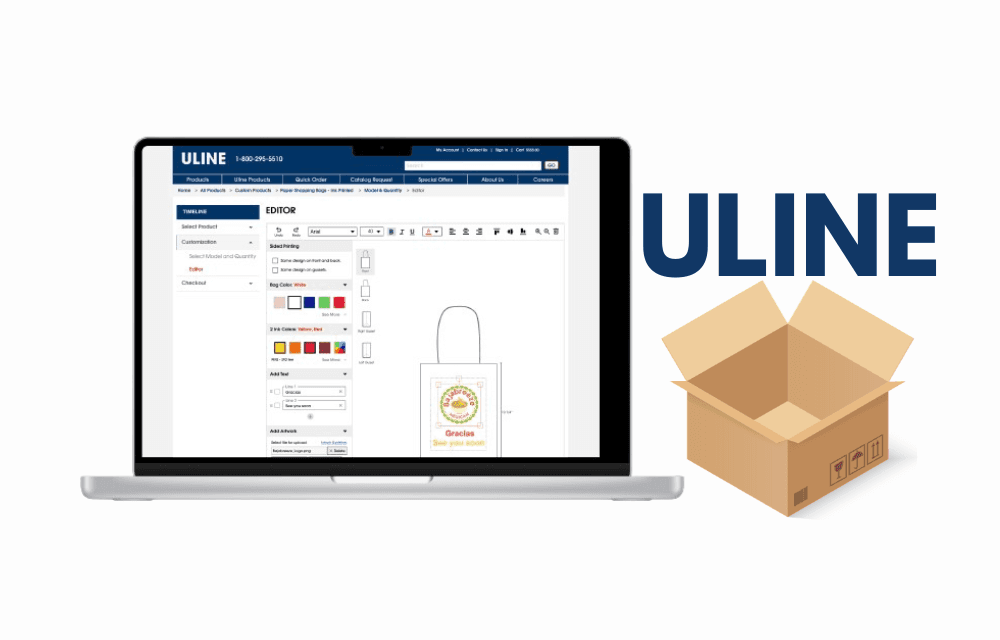
This case study highlights the redesign of ULINE's Custom Product Design Process, a platform for creating custom packaging and products. Through user research and iterative design, we improved usability and accessibility, resulting in a more intuitive and efficient platform that empowers businesses to easily create and order custom products.
Roles and Responsibility
Co-led team and established project framework
Led research and contributed to high-fidelity design
Acted as the main point of contact with the sponsor
Ensured clear communication and stakeholder alignment
Project Context
Fall 2024
Team: Tanvi Chand, Amy Fei, Natalie Falzone, Hope Jang, Emma Osante, Tejasvi Bhagwatkar, Ellie Starzak
Context
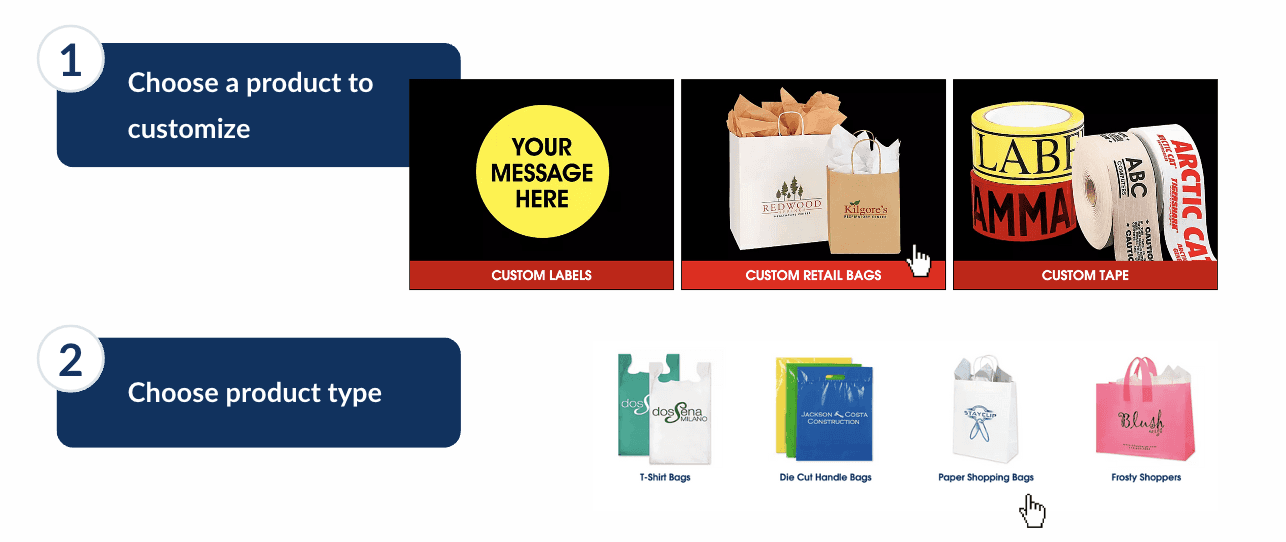
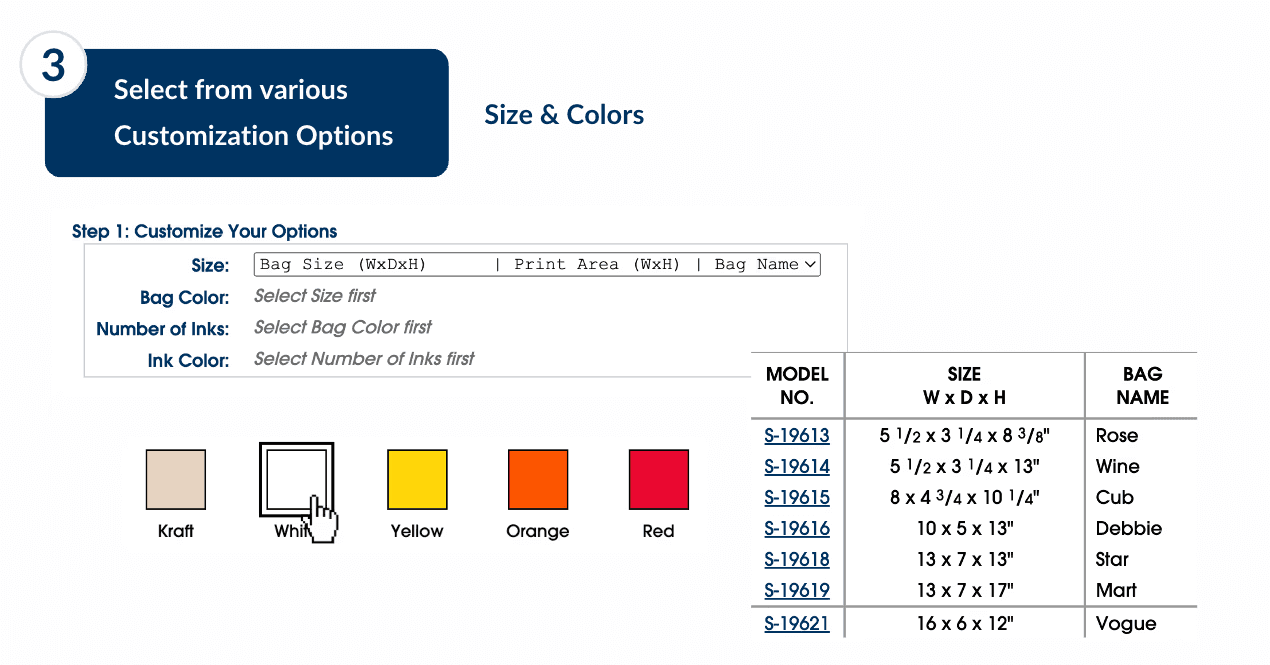
The current ULINE Custom Product Design Process is time-consuming, complex, and unintuitive for customers, particularly those unfamiliar with the tool; the interface and workflow present usability challenges, leading to frustration and inefficiency. This project seeks to identify and address these pain points, creating a more streamlined and user-friendly experience for customers to easily design and order custom-printed products.
Uline is a leading distributor of shipping, packaging, and industrial supplies across North America.
The current ULINE Custom Product Design Process is time-consuming, complex, and unintuitive for customers, particularly those unfamiliar with the tool; the interface and workflow present usability challenges, leading to frustration and inefficiency. This project seeks to identify and address these pain points, creating a more streamlined and user-friendly experience for customers to easily design and order custom-printed products.
User Group
The target audience for this project consists of both business-to-business (B2B) and business-to-customer (B2C) customers who want to create custom products for their business.
The target audience for this project consists of both business-to-business (B2B) and business-to-customer (B2C) customers who want to create custom products for their business.
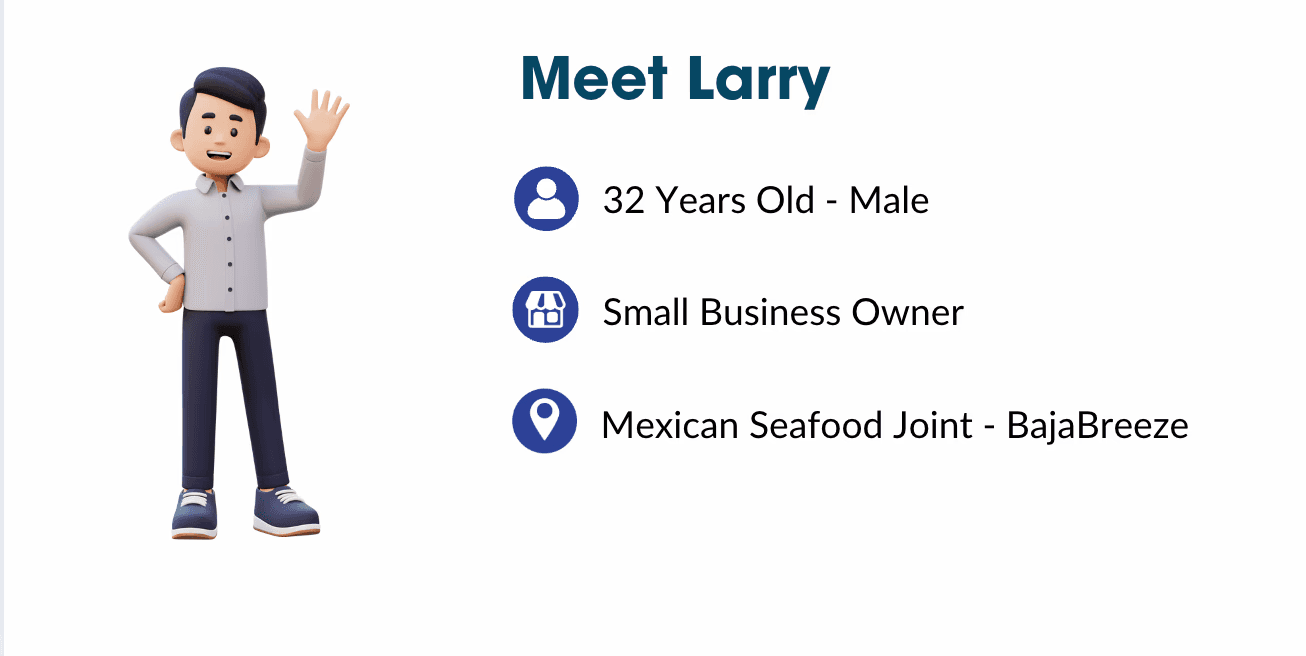
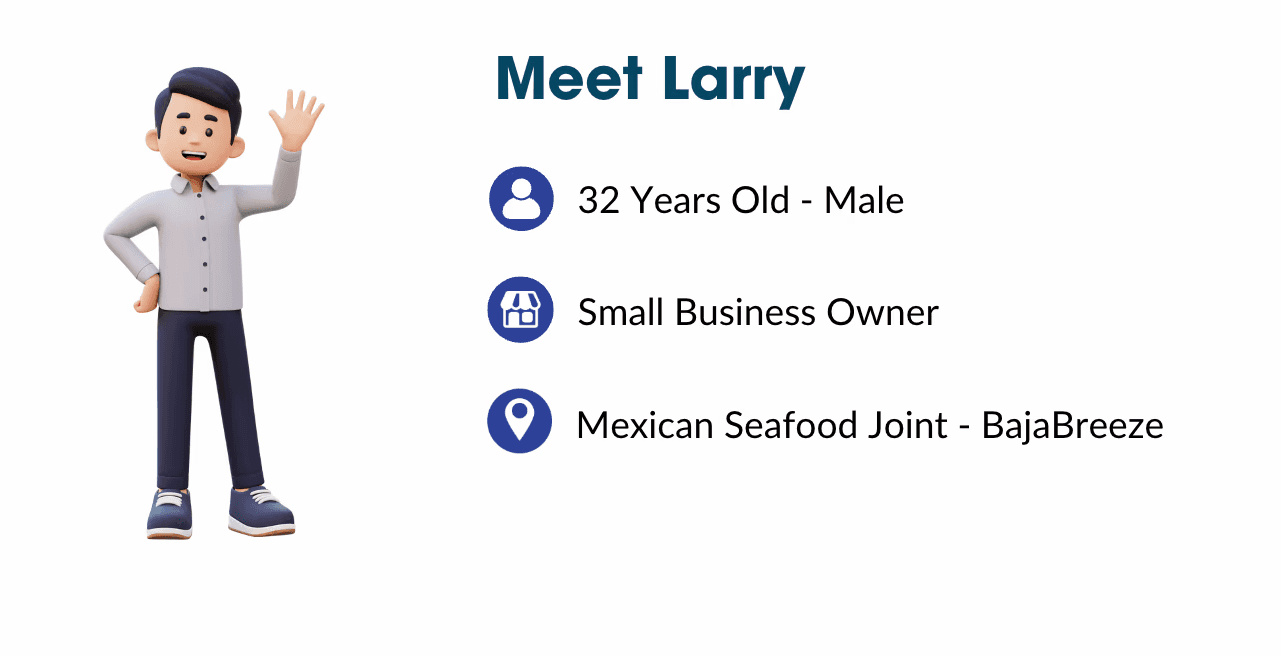
Meet Larry!!
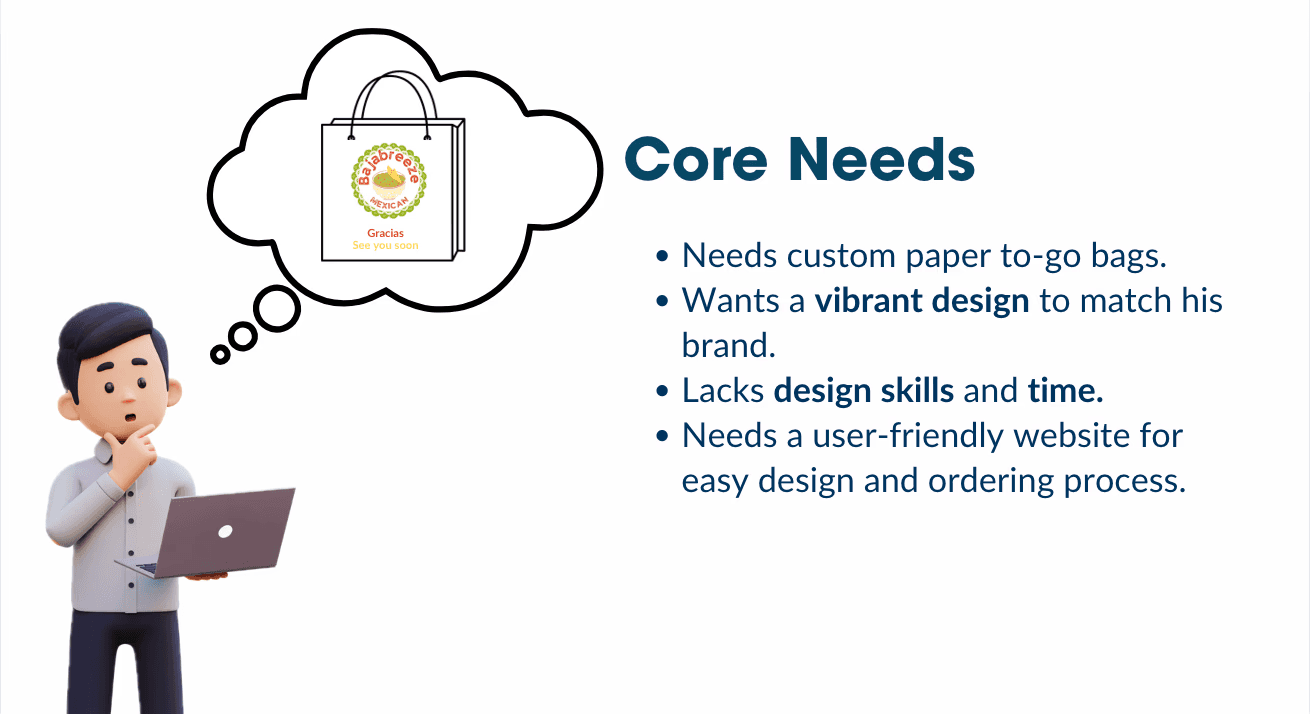
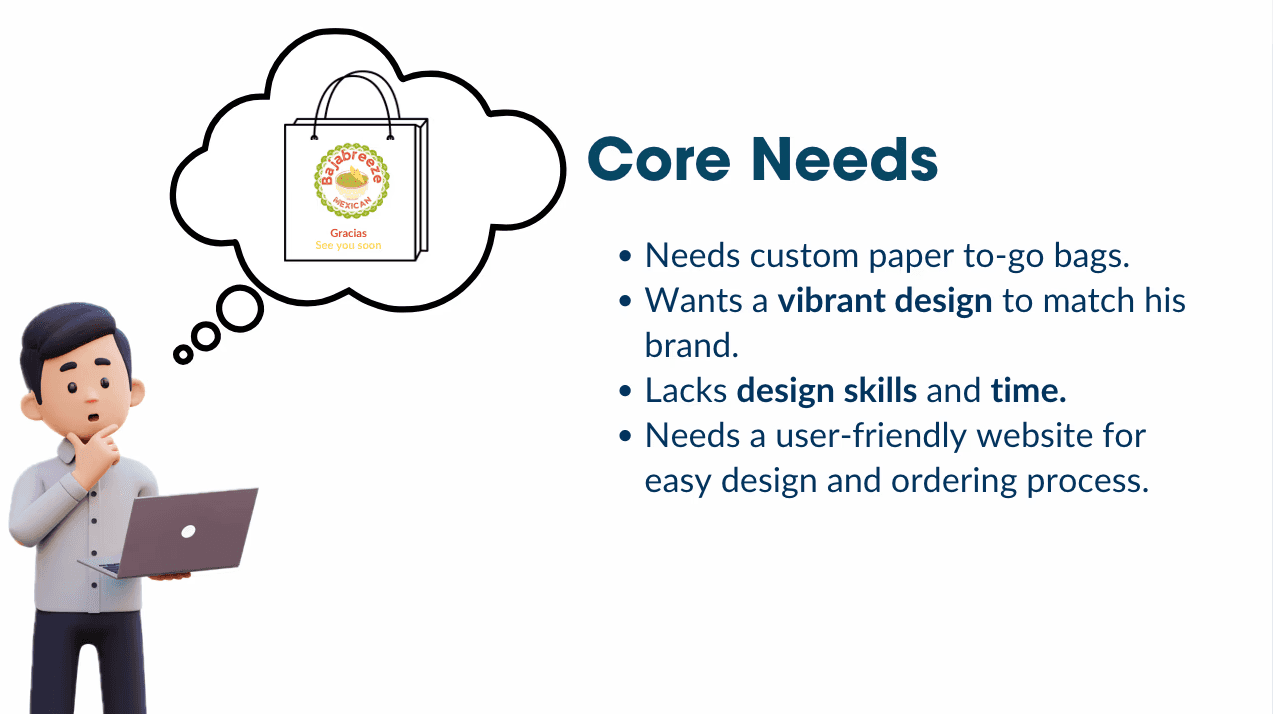
Larry Needs
Unfortunately Larry…….
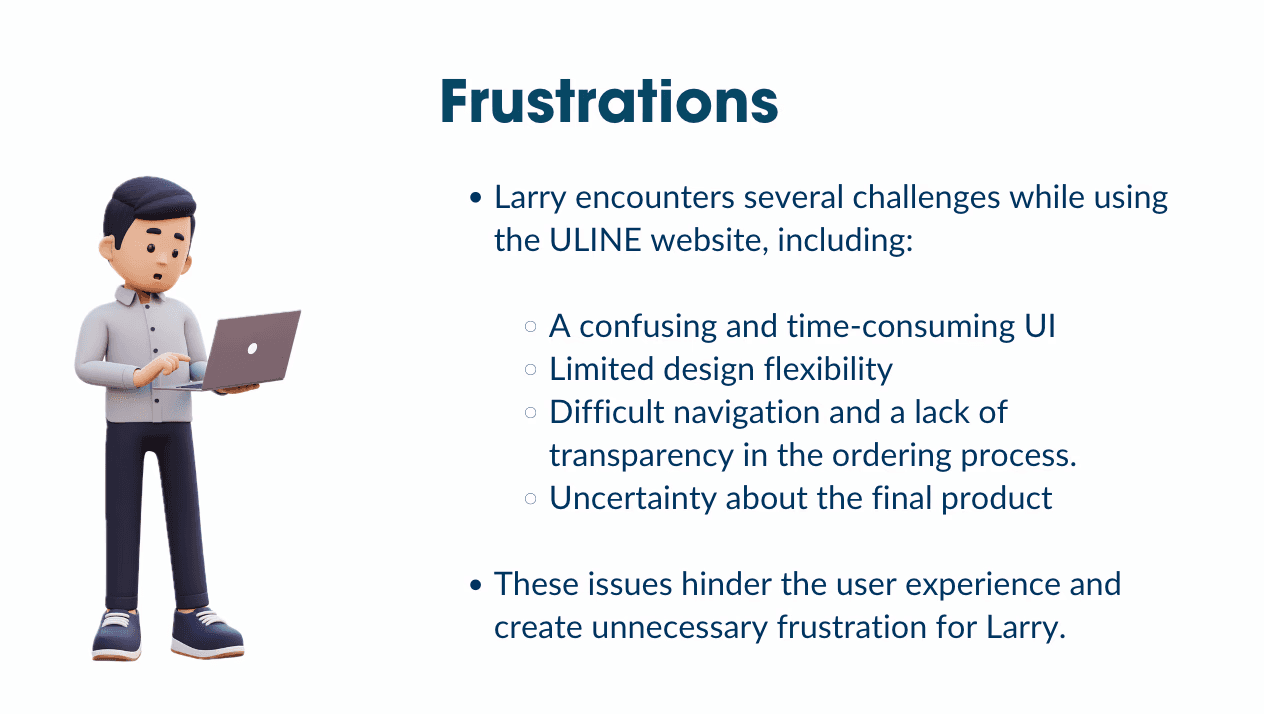
To help Larry overcome his frustration while working with the Uline website, we implemented a series of improvements
Approach
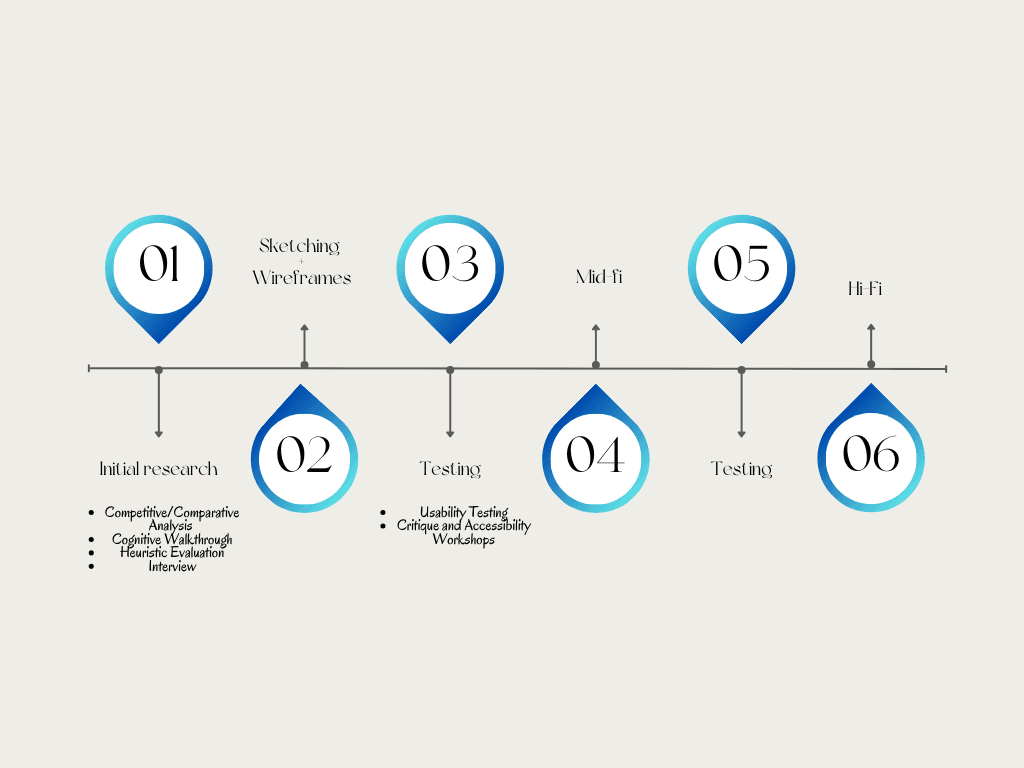
Current Steps

To help the user understand where they might be going wrong in the process, we sketched ways for the system to immediately alert the user that they are missing something, whether that be an incompatible dropdown selection or an email input error ( from the sketch above). In the same vein, this sketch also displays ways to inform the user that what they are doing is correct to allow them to move quickly through the steps.
Current state
Identify design opportunities in ULINE's Custom Product Design process
Our goal is to understand how the custom product design feature— and others similar to it— operates, and where businesses using this feature may encounter issues with its design.
Q
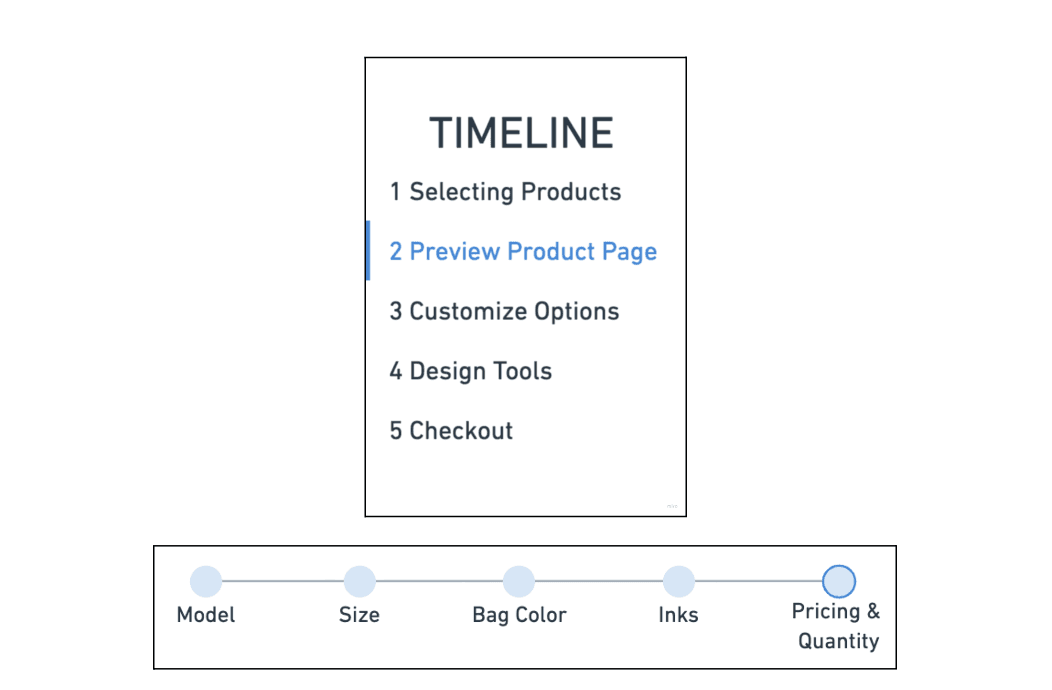
NavigationTo enhance navigation, we implemented a timeline feature within the ULINE site. This includes a vertical timeline showcasing broader process steps and horizontal sub-steps within each. Additionally, back/next buttons provide clear direction, preventing users from getting stuck on a page due to uncertainty.
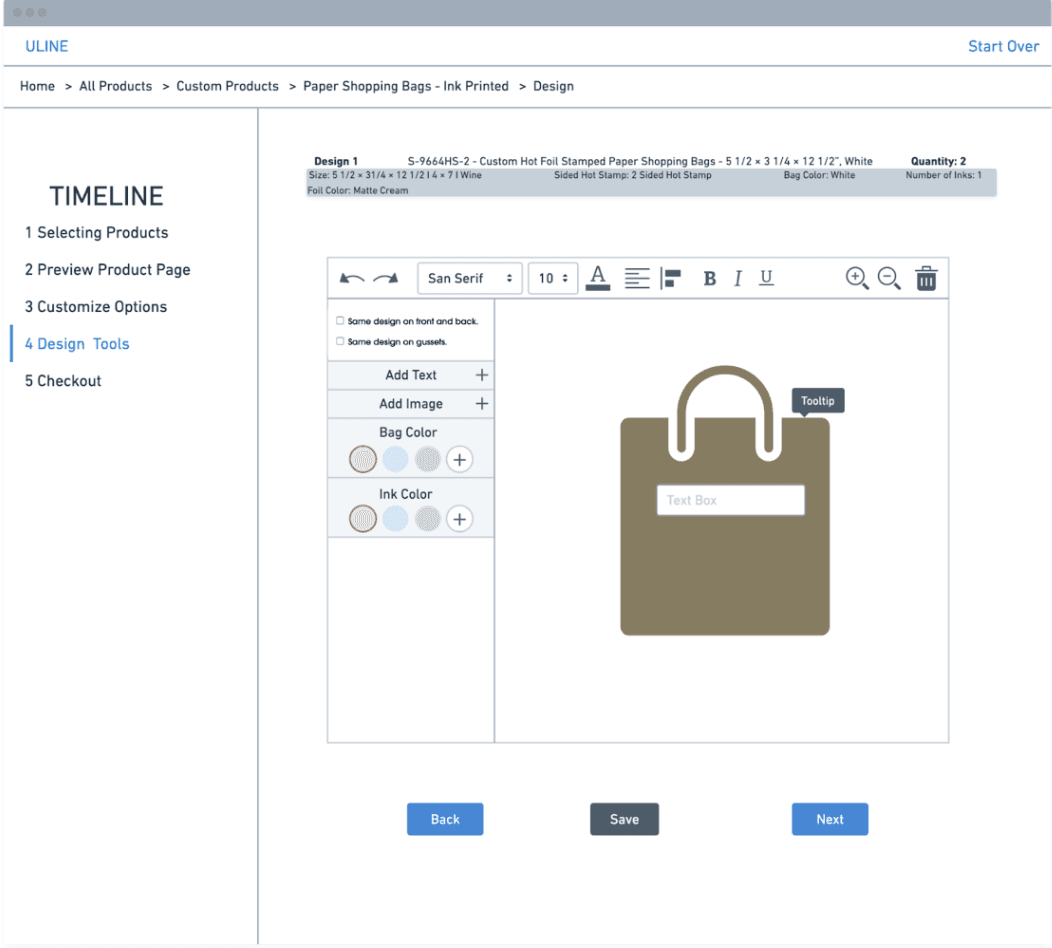
Enhance Editor and IconographyTo enhance the ULINE editor, we optimized sidebar usage and redesigned the top toolbar. We moved bag and ink color selections to the sidebar for improved accessibility. The redesigned toolbar now aligns with familiar platform conventions.
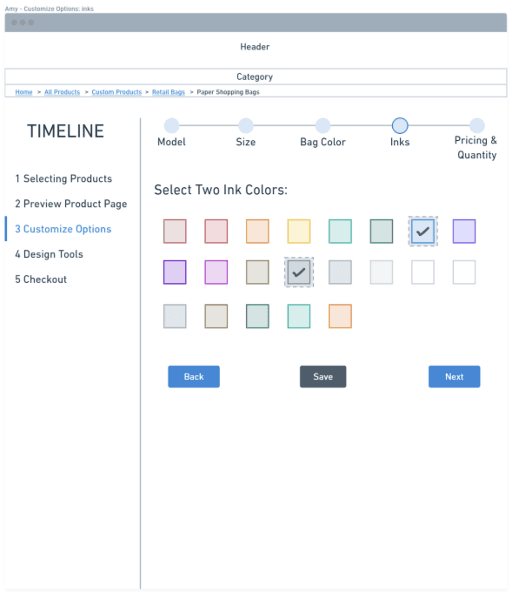
Improved Visual CuesUsability testing revealed confusion regarding ink color selection. To improve this, we implemented enhanced visual cues. Selected color boxes now feature a dashed border and a checkmark, providing users with clearer feedback and a more intuitive selection process.
NavigationTo enhance navigation, we implemented a timeline feature within the ULINE site. This includes a vertical timeline showcasing broader process steps and horizontal sub-steps within each. Additionally, back/next buttons provide clear direction, preventing users from getting stuck on a page due to uncertainty.
Enhance Editor and IconographyTo enhance the ULINE editor, we optimized sidebar usage and redesigned the top toolbar. We moved bag and ink color selections to the sidebar for improved accessibility. The redesigned toolbar now aligns with familiar platform conventions.
Improved Visual CuesUsability testing revealed confusion regarding ink color selection. To improve this, we implemented enhanced visual cues. Selected color boxes now feature a dashed border and a checkmark, providing users with clearer feedback and a more intuitive selection process.
NavigationTo enhance navigation, we implemented a timeline feature within the ULINE site. This includes a vertical timeline showcasing broader process steps and horizontal sub-steps within each. Additionally, back/next buttons provide clear direction, preventing users from getting stuck on a page due to uncertainty.
Enhance Editor and IconographyTo enhance the ULINE editor, we optimized sidebar usage and redesigned the top toolbar. We moved bag and ink color selections to the sidebar for improved accessibility. The redesigned toolbar now aligns with familiar platform conventions.
Improved Visual CuesUsability testing revealed confusion regarding ink color selection. To improve this, we implemented enhanced visual cues. Selected color boxes now feature a dashed border and a checkmark, providing users with clearer feedback and a more intuitive selection process.
NavigationTo enhance navigation, we implemented a timeline feature within the ULINE site. This includes a vertical timeline showcasing broader process steps and horizontal sub-steps within each. Additionally, back/next buttons provide clear direction, preventing users from getting stuck on a page due to uncertainty.
Enhance Editor and IconographyTo enhance the ULINE editor, we optimized sidebar usage and redesigned the top toolbar. We moved bag and ink color selections to the sidebar for improved accessibility. The redesigned toolbar now aligns with familiar platform conventions.
Improved Visual CuesUsability testing revealed confusion regarding ink color selection. To improve this, we implemented enhanced visual cues. Selected color boxes now feature a dashed border and a checkmark, providing users with clearer feedback and a more intuitive selection process.
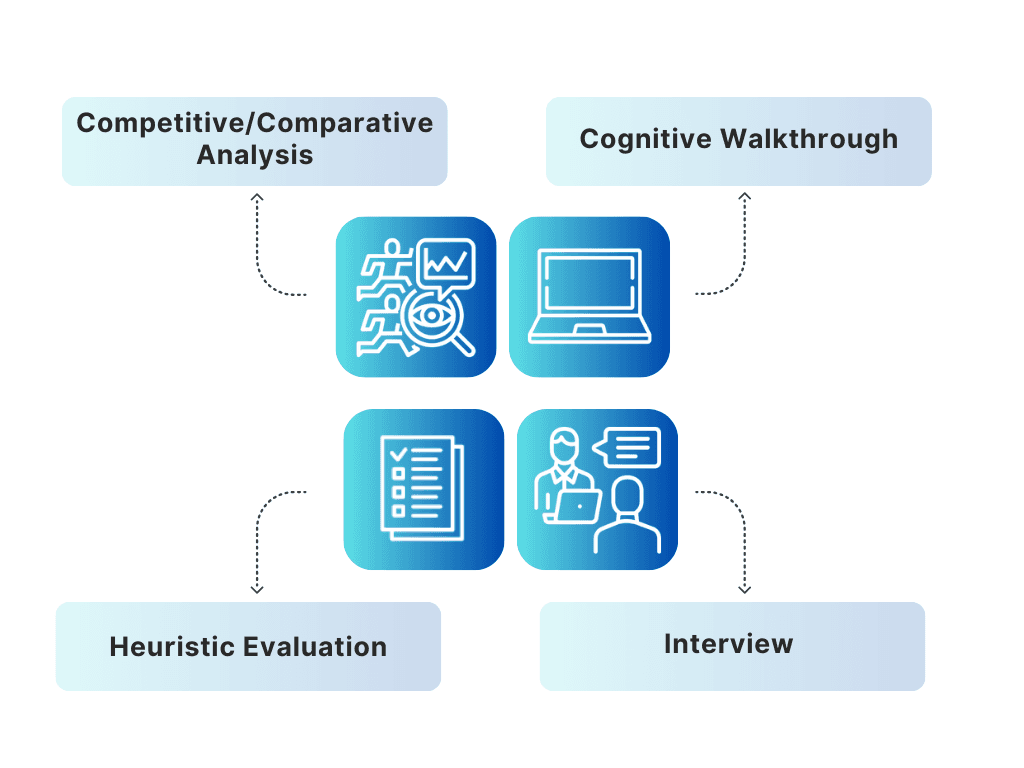
All of the research helped us in creating our journey map
Interview
Competive / Comparative Analysis
Cognitive Walkthrough
Heuristic Evaluation
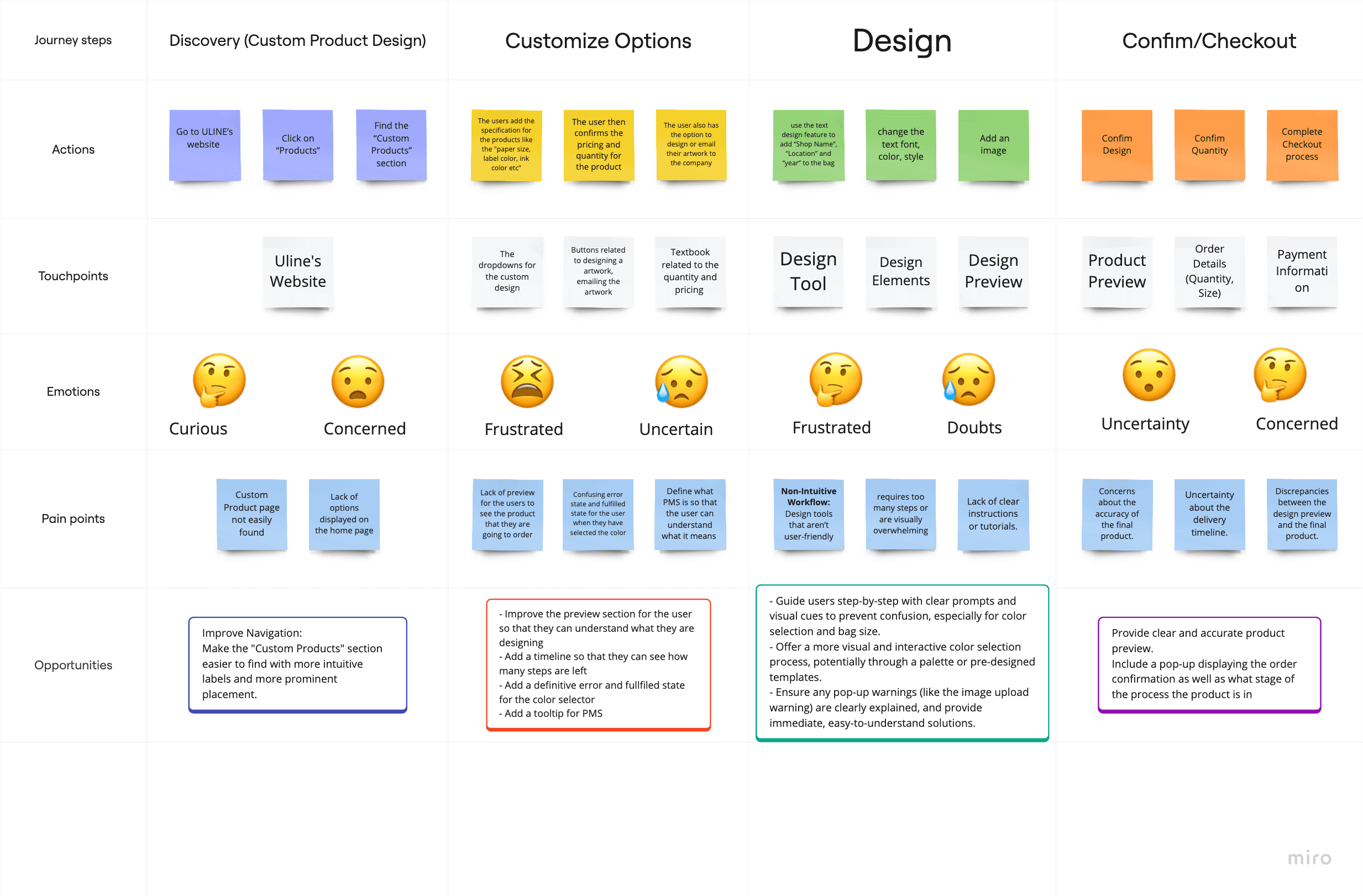
Define, Create, and Evaluate a Seamless Custom Product Design Process.
Our goal is to apply our insights from Milestone 1 to a user interface prototype that effectively makes the ULINE Custom Product Design process effortless and user-friendly.
Sketching
The goal of our preliminary sketching phase was to ideate and determine the most seamless and effective design solutions. Based on insights gathered from both new and experienced users, we identified two key opportunities: improving user feedback mechanisms and enhancing the visualization of design options. To explore solutions for these opportunities, our team conducted a "Crazy Eight's" brainstorming session. This activity involved generating and voting on a variety of proposed design solutions, ultimately guiding us towards the most promising directions for our redesign.
To see more sketches, please refer to the documentation below
Wireframe
To translate research insights (usability testing, interviews, heuristic evaluation) into tangible, testable designs, we utilized Whimiscal to create mid-fidelity wireframes. Whimiscal's pre-built UI elements facilitated rapid prototyping and allowed us to effectively visualize and test key design improvements identified during research.
NavigationTo enhance navigation, we implemented a timeline feature within the ULINE site. This includes a vertical timeline showcasing broader process steps and horizontal sub-steps within each. Additionally, back/next buttons provide clear direction, preventing users from getting stuck on a page due to uncertainty.
Enhance Editor and IconographyTo enhance the ULINE editor, we optimized sidebar usage and redesigned the top toolbar. We moved bag and ink color selections to the sidebar for improved accessibility. The redesigned toolbar now aligns with familiar platform conventions.
Improved Visual CuesUsability testing revealed confusion regarding ink color selection. To improve this, we implemented enhanced visual cues. Selected color boxes now feature a dashed border and a checkmark, providing users with clearer feedback and a more intuitive selection process.
NavigationTo enhance navigation, we implemented a timeline feature within the ULINE site. This includes a vertical timeline showcasing broader process steps and horizontal sub-steps within each. Additionally, back/next buttons provide clear direction, preventing users from getting stuck on a page due to uncertainty.
Enhance Editor and IconographyTo enhance the ULINE editor, we optimized sidebar usage and redesigned the top toolbar. We moved bag and ink color selections to the sidebar for improved accessibility. The redesigned toolbar now aligns with familiar platform conventions.
Improved Visual CuesUsability testing revealed confusion regarding ink color selection. To improve this, we implemented enhanced visual cues. Selected color boxes now feature a dashed border and a checkmark, providing users with clearer feedback and a more intuitive selection process.
NavigationTo enhance navigation, we implemented a timeline feature within the ULINE site. This includes a vertical timeline showcasing broader process steps and horizontal sub-steps within each. Additionally, back/next buttons provide clear direction, preventing users from getting stuck on a page due to uncertainty.
Enhance Editor and IconographyTo enhance the ULINE editor, we optimized sidebar usage and redesigned the top toolbar. We moved bag and ink color selections to the sidebar for improved accessibility. The redesigned toolbar now aligns with familiar platform conventions.
Improved Visual CuesUsability testing revealed confusion regarding ink color selection. To improve this, we implemented enhanced visual cues. Selected color boxes now feature a dashed border and a checkmark, providing users with clearer feedback and a more intuitive selection process.
NavigationTo enhance navigation, we implemented a timeline feature within the ULINE site. This includes a vertical timeline showcasing broader process steps and horizontal sub-steps within each. Additionally, back/next buttons provide clear direction, preventing users from getting stuck on a page due to uncertainty.
Enhance Editor and IconographyTo enhance the ULINE editor, we optimized sidebar usage and redesigned the top toolbar. We moved bag and ink color selections to the sidebar for improved accessibility. The redesigned toolbar now aligns with familiar platform conventions.
Improved Visual CuesUsability testing revealed confusion regarding ink color selection. To improve this, we implemented enhanced visual cues. Selected color boxes now feature a dashed border and a checkmark, providing users with clearer feedback and a more intuitive selection process.
NavigationTo enhance navigation, we implemented a timeline feature within the ULINE site. This includes a vertical timeline showcasing broader process steps and horizontal sub-steps within each. Additionally, back/next buttons provide clear direction, preventing users from getting stuck on a page due to uncertainty.
Enhance Editor and IconographyTo enhance the ULINE editor, we optimized sidebar usage and redesigned the top toolbar. We moved bag and ink color selections to the sidebar for improved accessibility. The redesigned toolbar now aligns with familiar platform conventions.
Improved Visual CuesUsability testing revealed confusion regarding ink color selection. To improve this, we implemented enhanced visual cues. Selected color boxes now feature a dashed border and a checkmark, providing users with clearer feedback and a more intuitive selection process.
NavigationTo enhance navigation, we implemented a timeline feature within the ULINE site. This includes a vertical timeline showcasing broader process steps and horizontal sub-steps within each. Additionally, back/next buttons provide clear direction, preventing users from getting stuck on a page due to uncertainty.
Enhance Editor and IconographyTo enhance the ULINE editor, we optimized sidebar usage and redesigned the top toolbar. We moved bag and ink color selections to the sidebar for improved accessibility. The redesigned toolbar now aligns with familiar platform conventions.
Improved Visual CuesUsability testing revealed confusion regarding ink color selection. To improve this, we implemented enhanced visual cues. Selected color boxes now feature a dashed border and a checkmark, providing users with clearer feedback and a more intuitive selection process.
NavigationTo enhance navigation, we implemented a timeline feature within the ULINE site. This includes a vertical timeline showcasing broader process steps and horizontal sub-steps within each. Additionally, back/next buttons provide clear direction, preventing users from getting stuck on a page due to uncertainty.
Enhance Editor and IconographyTo enhance the ULINE editor, we optimized sidebar usage and redesigned the top toolbar. We moved bag and ink color selections to the sidebar for improved accessibility. The redesigned toolbar now aligns with familiar platform conventions.
Improved Visual CuesUsability testing revealed confusion regarding ink color selection. To improve this, we implemented enhanced visual cues. Selected color boxes now feature a dashed border and a checkmark, providing users with clearer feedback and a more intuitive selection process.
NavigationTo enhance navigation, we implemented a timeline feature within the ULINE site. This includes a vertical timeline showcasing broader process steps and horizontal sub-steps within each. Additionally, back/next buttons provide clear direction, preventing users from getting stuck on a page due to uncertainty.
Enhance Editor and IconographyTo enhance the ULINE editor, we optimized sidebar usage and redesigned the top toolbar. We moved bag and ink color selections to the sidebar for improved accessibility. The redesigned toolbar now aligns with familiar platform conventions.
Improved Visual CuesUsability testing revealed confusion regarding ink color selection. To improve this, we implemented enhanced visual cues. Selected color boxes now feature a dashed border and a checkmark, providing users with clearer feedback and a more intuitive selection process.
Before proceeding to high-fidelity prototypes, we sought feedback on key design decisions. This included determining the typical number of ink colors and lines used by users, and evaluating the effectiveness of two separate timelines (one for the overall process and one for sub-steps). Our sponsor challenged us to integrate these timelines more efficiently, a suggestion also supported by usability testing and critiques. This iterative process, involving user feedback and expert opinions, informed the development of our high-fidelity prototypes
Testing
Mid-Fidelity Critique Workshop
Mid-Fidelity Accessibility Workshop
Mid-Fidelity Usability Testing
Mid-Fidelity Critique Workshop
Mid-Fidelity Accessibility Workshop
Mid-Fidelity Usability Testing
Final Design - Mid-Fis vs. Hi-Fis
Final Design
Landing Page
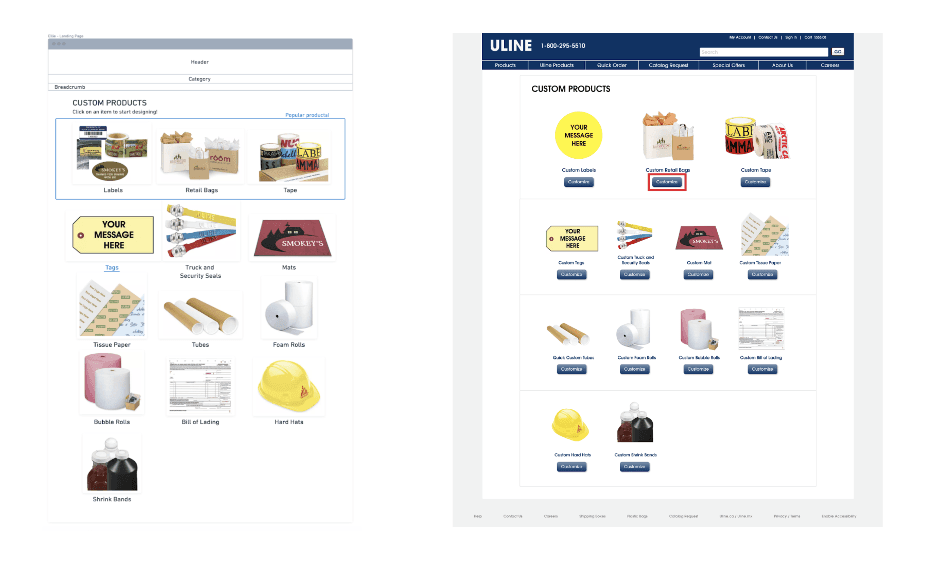
The mid-fidelity designs for the landing page featured caption links and a box highlighting popular products. In the final design, the hyperlinks were adjusted for better visual consistency. "Back" and "Next" buttons were added to enhance navigation, addressing concerns about clarity on the number of steps and progression, as noted during Cognitive Walkthroughs. The highlight box was removed, but the top products were kept at the top of the page.
Select Bag Type Page
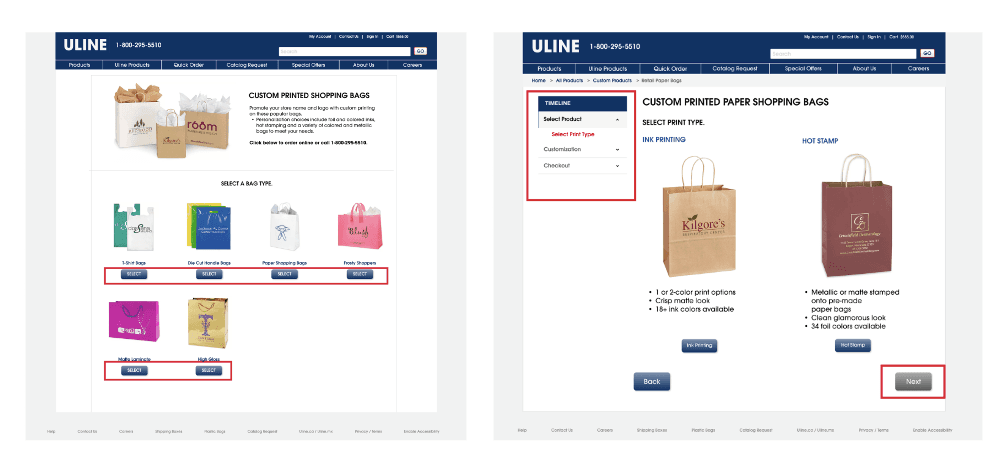
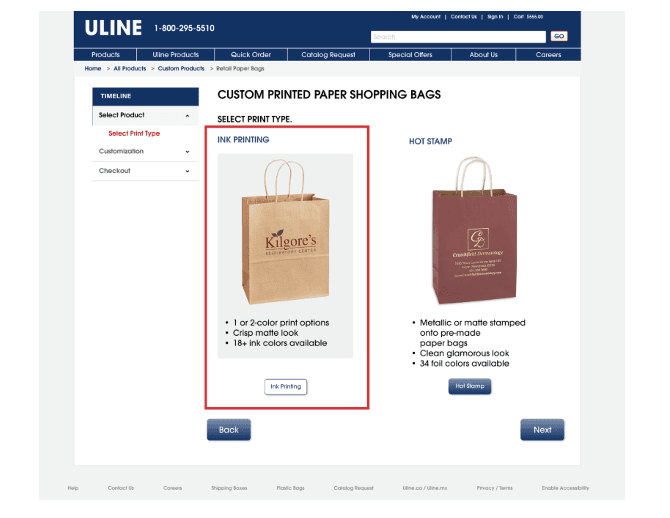
Key insights revealed that the prototypes felt overwhelming due to excessive information and lacked sufficient visual cues to indicate selected states and guide navigation.
To address these issues, we made several improvements:
Enhanced Product Selection: Added buttons for bag type selection with immediate visual feedback. A greyed-out “Next” button prevents progression until a selection is made, clarifying required actions.
Reduced Cognitive Overload: Divided the bag customization process into two steps, incorporating visual cues like grey backgrounds and changed button states to guide users.
Testing confirmed these changes improved clarity. The clickable "Next" button indicated pending actions, resolving confusion when screens did not advance after a selection. These updates ensure users have clear information and freedom to make choices.
Price and Quantity page
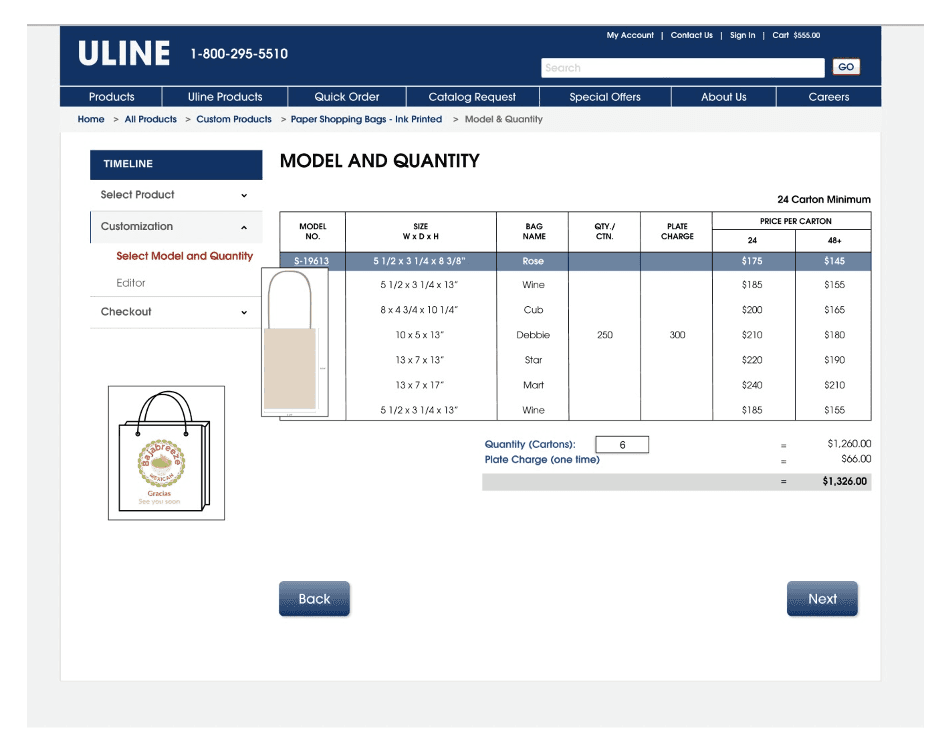
In our mid-fidelity designs, the price and quantity pages were initially separate but were combined into one page to reduce the number of screens. This decision was influenced by sponsor feedback emphasizing the need for quick website navigation and desk critique insights to simplify the process and reduce user overwhelm.
For the high-fidelity designs, we incorporated a Product Preview feature. Participants expressed difficulty visualizing bag dimensions from a table, so we added a Bag Size Preview that appears when users hover over a Model Number. These changes improve efficiency and enhance the user experience with clearer visual guidance.
Design Editor page
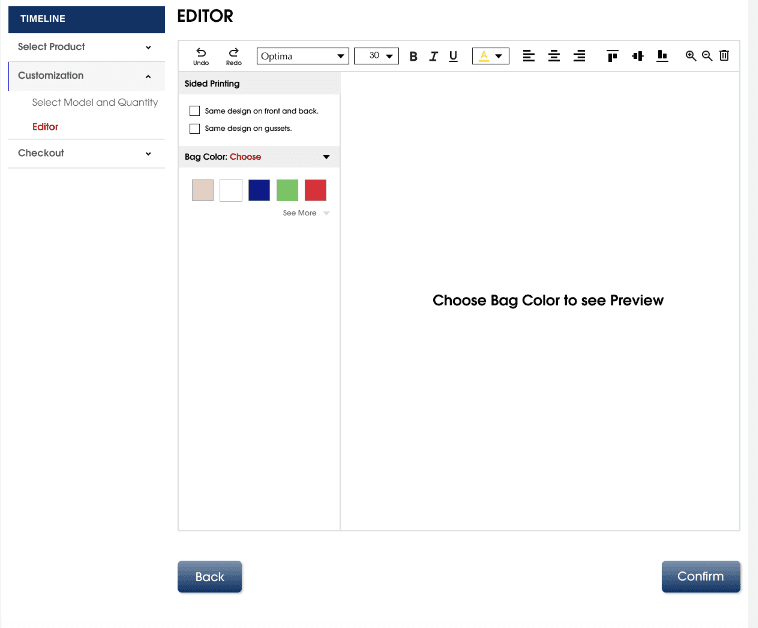
In our mid-fidelity designs for the Design Editor, we introduced two new tabs for selecting Bag and Ink Colors, allowing users to see immediate feedback through a Product Preview that updates based on their selections.
We also revamped the toolbar to address issues with the original ULINE design, which used dropdowns and ambiguous terms like "Front," "Center," and "Middle." These were replaced with familiar icons to improve intuitiveness and standardization. Additionally, we added undo and redo buttons to simplify error correction.
For the high-fidelity designs, we retained the mid-fi improvements and further refined the flow to enhance simplicity and cohesion. These updates were informed by insights from the Accessibility Workshop, Critique Workshop, and Usability Testing. The result is a more user-friendly Design Editor with clear and intuitive interactions.
Step By Step Change
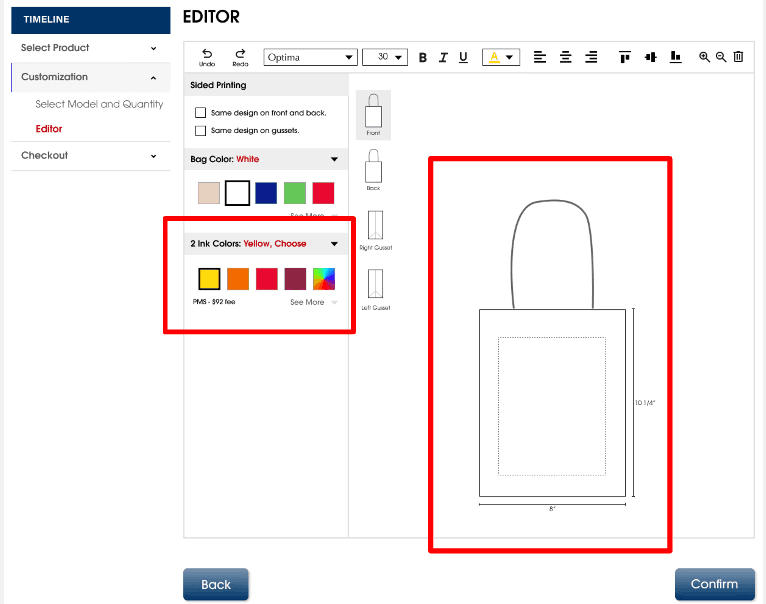
Step 1Once you choose a Bag Color, a preview of the bag you selected will show up in the preview. The color of the preview bag will reflect the color you’ve selected. Then the Ink Colors tab will populate for you to make a selection.
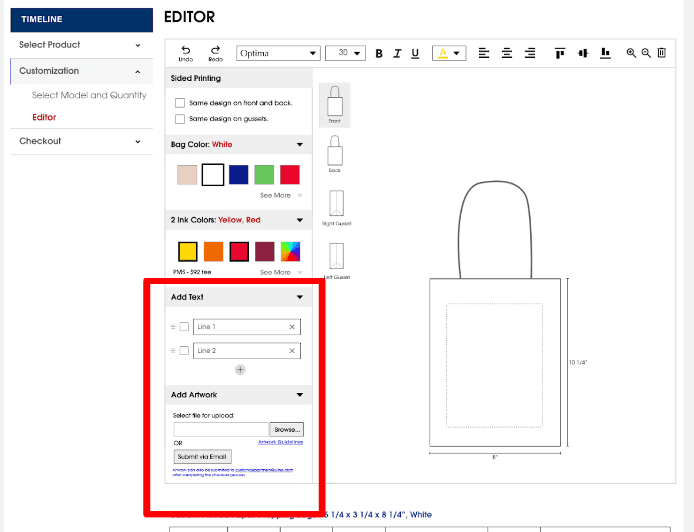
Step 2After you have selected the Ink Colors, the two tabs to Add Text and Add Artwork will populate, along with an updated Pricing & Quantity chart that reflects any pricing changes based on the Ink color selection you’ve made (Custom colors have an extra fee).
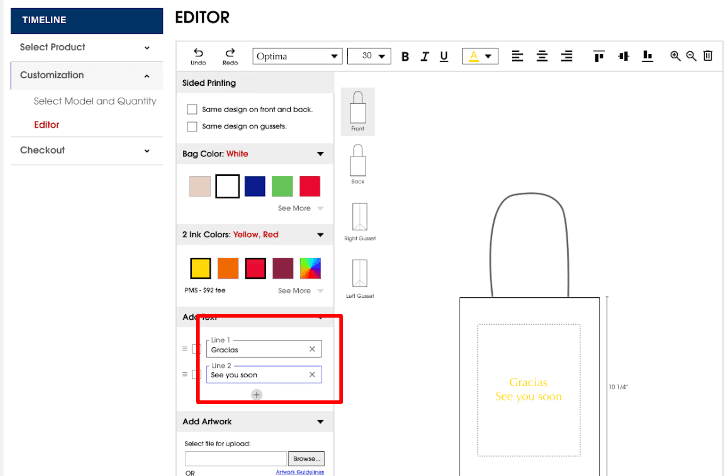
Step 3In the text input fields under the Add Text tab, you can put text in lines. Clicking on the plus icon below the fields allows users to add more lines of text, whereas clicking on the “x” icon at the far right of each text field will allow users to delete that line of text.
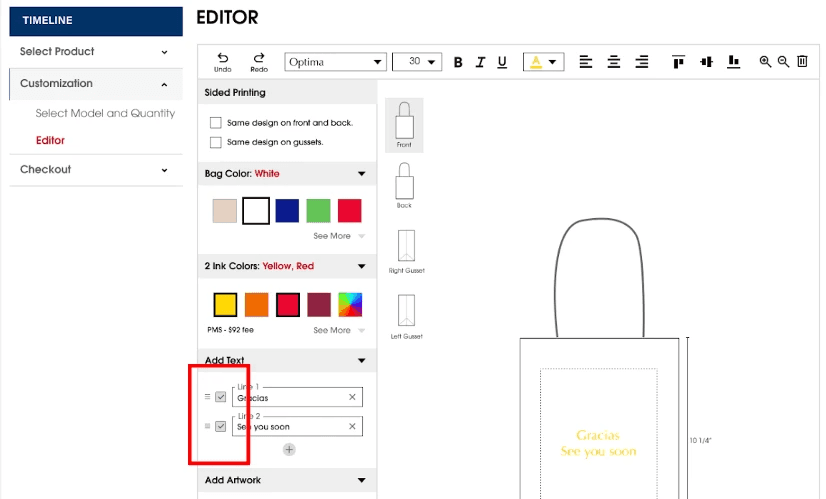
Step 4Checking the checkboxes next to each text field allows users to Bulk Edit. This means that any changes made on the toolbar will be reflected on the lines of text the user has checked off.
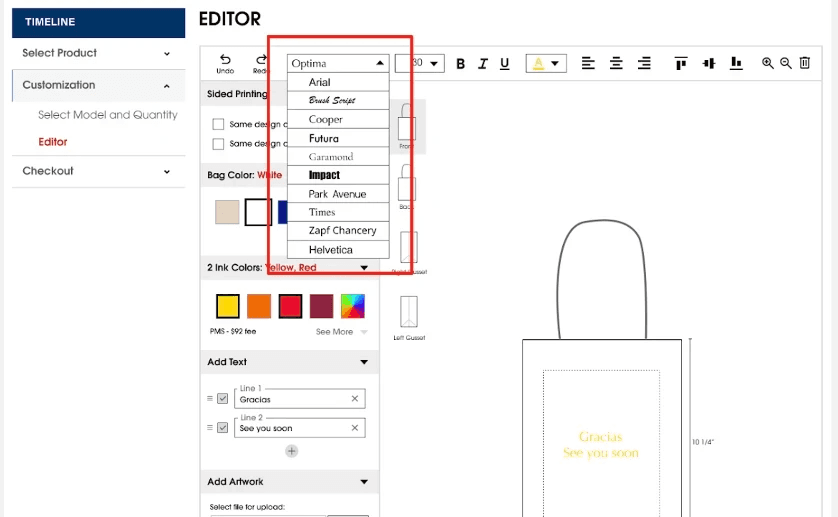
Step 5Checking the checkboxes next to each text field allows users to Bulk Edit. This means that any changes made on the toolbar will be reflected on the lines of text the user has checked off.
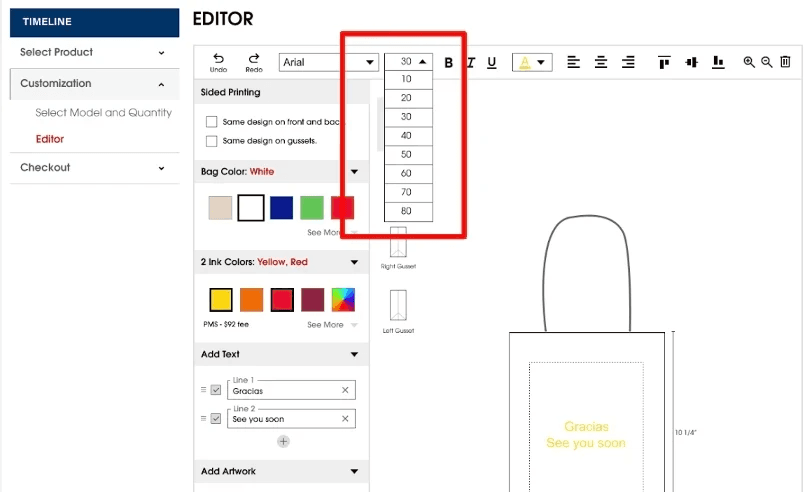
Step 6Users can change the font size the same way by clicking on the dropdown and selecting the size they want. All changes will be reflected immediately in the preview.
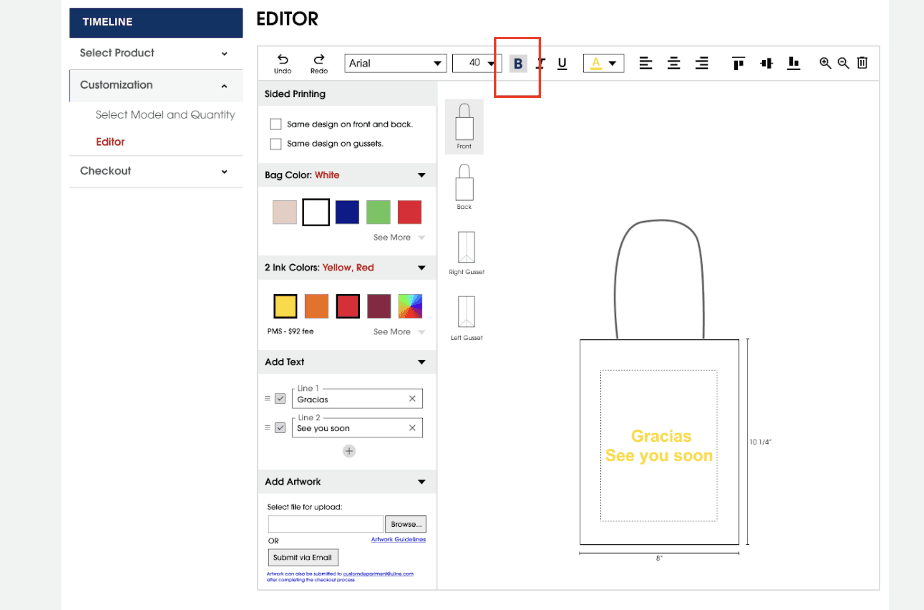
Step 7To change the formatting of the Text, users can click on any of the Bold, Italic, and Underline icons. The selected icon will be shaded in grey to visually give feedback on its selection status. The formatting change will be reflected in the preview immediately.
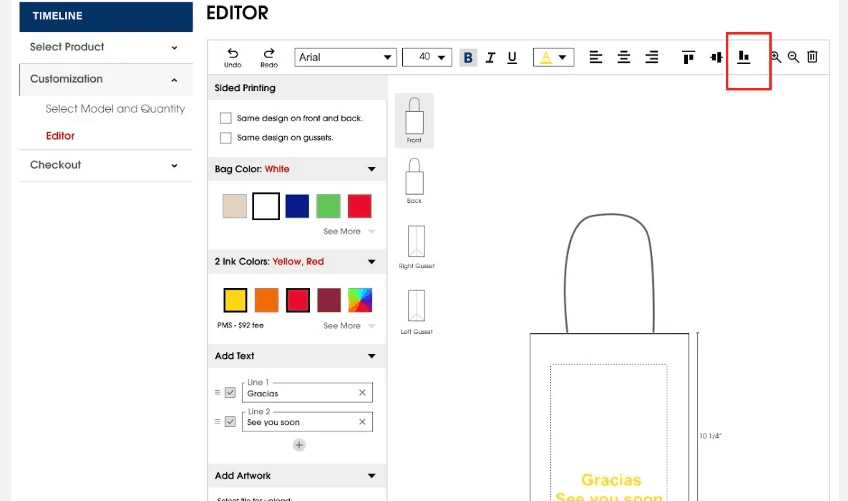
Step 8To change the vertical alignment of the text, users can click on the corresponding icons. We see in this example screen that the text is now aligned to the bottom of the designated space.
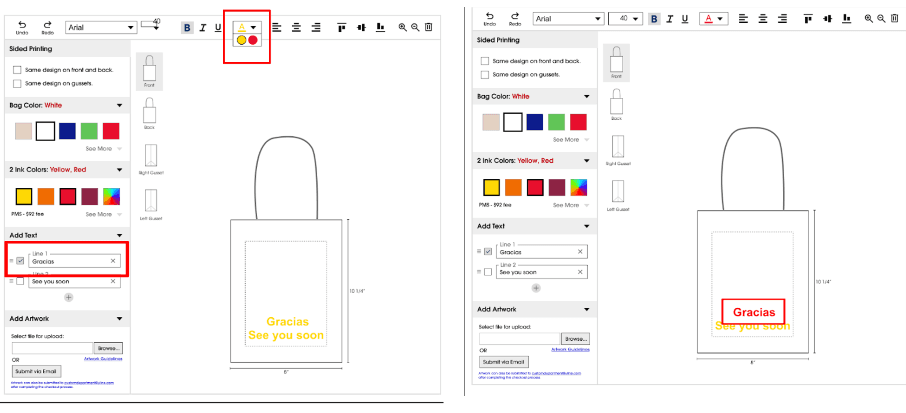
Step 9To change the vertical alignment of the text, users can click on the corresponding icons. We see in this example screen that the text is now aligned to the bottom of the designated space.
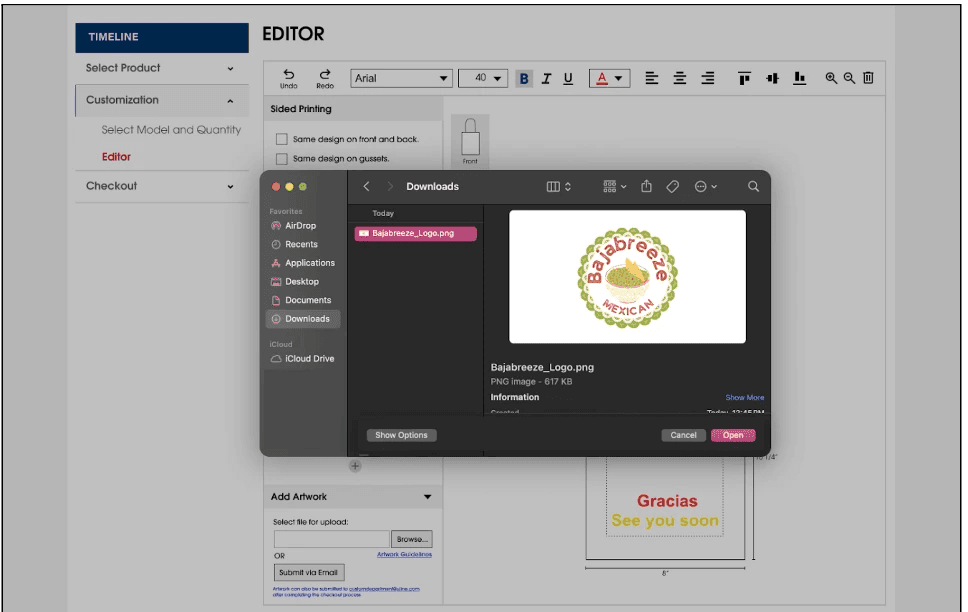
Step 10Users can Add Artwork or image files to the design by clicking on the “Browse” button. A popup will show up where users can look through their desktop files to upload their images of choice.
Step 1Once you choose a Bag Color, a preview of the bag you selected will show up in the preview. The color of the preview bag will reflect the color you’ve selected. Then the Ink Colors tab will populate for you to make a selection.
Step 2After you have selected the Ink Colors, the two tabs to Add Text and Add Artwork will populate, along with an updated Pricing & Quantity chart that reflects any pricing changes based on the Ink color selection you’ve made (Custom colors have an extra fee).
Step 3In the text input fields under the Add Text tab, you can put text in lines. Clicking on the plus icon below the fields allows users to add more lines of text, whereas clicking on the “x” icon at the far right of each text field will allow users to delete that line of text.
Step 4Checking the checkboxes next to each text field allows users to Bulk Edit. This means that any changes made on the toolbar will be reflected on the lines of text the user has checked off.
Step 5Checking the checkboxes next to each text field allows users to Bulk Edit. This means that any changes made on the toolbar will be reflected on the lines of text the user has checked off.
Step 6Users can change the font size the same way by clicking on the dropdown and selecting the size they want. All changes will be reflected immediately in the preview.
Step 7To change the formatting of the Text, users can click on any of the Bold, Italic, and Underline icons. The selected icon will be shaded in grey to visually give feedback on its selection status. The formatting change will be reflected in the preview immediately.
Step 8To change the vertical alignment of the text, users can click on the corresponding icons. We see in this example screen that the text is now aligned to the bottom of the designated space.
Step 9To change the vertical alignment of the text, users can click on the corresponding icons. We see in this example screen that the text is now aligned to the bottom of the designated space.
Step 10Users can Add Artwork or image files to the design by clicking on the “Browse” button. A popup will show up where users can look through their desktop files to upload their images of choice.
Step 1Once you choose a Bag Color, a preview of the bag you selected will show up in the preview. The color of the preview bag will reflect the color you’ve selected. Then the Ink Colors tab will populate for you to make a selection.
Step 2After you have selected the Ink Colors, the two tabs to Add Text and Add Artwork will populate, along with an updated Pricing & Quantity chart that reflects any pricing changes based on the Ink color selection you’ve made (Custom colors have an extra fee).
Step 3In the text input fields under the Add Text tab, you can put text in lines. Clicking on the plus icon below the fields allows users to add more lines of text, whereas clicking on the “x” icon at the far right of each text field will allow users to delete that line of text.
Step 4Checking the checkboxes next to each text field allows users to Bulk Edit. This means that any changes made on the toolbar will be reflected on the lines of text the user has checked off.
Step 5Checking the checkboxes next to each text field allows users to Bulk Edit. This means that any changes made on the toolbar will be reflected on the lines of text the user has checked off.
Step 6Users can change the font size the same way by clicking on the dropdown and selecting the size they want. All changes will be reflected immediately in the preview.
Step 7To change the formatting of the Text, users can click on any of the Bold, Italic, and Underline icons. The selected icon will be shaded in grey to visually give feedback on its selection status. The formatting change will be reflected in the preview immediately.
Step 8To change the vertical alignment of the text, users can click on the corresponding icons. We see in this example screen that the text is now aligned to the bottom of the designated space.
Step 9To change the vertical alignment of the text, users can click on the corresponding icons. We see in this example screen that the text is now aligned to the bottom of the designated space.
Step 10Users can Add Artwork or image files to the design by clicking on the “Browse” button. A popup will show up where users can look through their desktop files to upload their images of choice.
Step 1Once you choose a Bag Color, a preview of the bag you selected will show up in the preview. The color of the preview bag will reflect the color you’ve selected. Then the Ink Colors tab will populate for you to make a selection.
Step 2After you have selected the Ink Colors, the two tabs to Add Text and Add Artwork will populate, along with an updated Pricing & Quantity chart that reflects any pricing changes based on the Ink color selection you’ve made (Custom colors have an extra fee).
Step 3In the text input fields under the Add Text tab, you can put text in lines. Clicking on the plus icon below the fields allows users to add more lines of text, whereas clicking on the “x” icon at the far right of each text field will allow users to delete that line of text.
Step 4Checking the checkboxes next to each text field allows users to Bulk Edit. This means that any changes made on the toolbar will be reflected on the lines of text the user has checked off.
Step 5Checking the checkboxes next to each text field allows users to Bulk Edit. This means that any changes made on the toolbar will be reflected on the lines of text the user has checked off.
Step 6Users can change the font size the same way by clicking on the dropdown and selecting the size they want. All changes will be reflected immediately in the preview.
Step 7To change the formatting of the Text, users can click on any of the Bold, Italic, and Underline icons. The selected icon will be shaded in grey to visually give feedback on its selection status. The formatting change will be reflected in the preview immediately.
Step 8To change the vertical alignment of the text, users can click on the corresponding icons. We see in this example screen that the text is now aligned to the bottom of the designated space.
Step 9To change the vertical alignment of the text, users can click on the corresponding icons. We see in this example screen that the text is now aligned to the bottom of the designated space.
Step 10Users can Add Artwork or image files to the design by clicking on the “Browse” button. A popup will show up where users can look through their desktop files to upload their images of choice.
Step 1Once you choose a Bag Color, a preview of the bag you selected will show up in the preview. The color of the preview bag will reflect the color you’ve selected. Then the Ink Colors tab will populate for you to make a selection.
Step 2After you have selected the Ink Colors, the two tabs to Add Text and Add Artwork will populate, along with an updated Pricing & Quantity chart that reflects any pricing changes based on the Ink color selection you’ve made (Custom colors have an extra fee).
Step 3In the text input fields under the Add Text tab, you can put text in lines. Clicking on the plus icon below the fields allows users to add more lines of text, whereas clicking on the “x” icon at the far right of each text field will allow users to delete that line of text.
Step 4Checking the checkboxes next to each text field allows users to Bulk Edit. This means that any changes made on the toolbar will be reflected on the lines of text the user has checked off.
Step 5Checking the checkboxes next to each text field allows users to Bulk Edit. This means that any changes made on the toolbar will be reflected on the lines of text the user has checked off.
Step 6Users can change the font size the same way by clicking on the dropdown and selecting the size they want. All changes will be reflected immediately in the preview.
Step 7To change the formatting of the Text, users can click on any of the Bold, Italic, and Underline icons. The selected icon will be shaded in grey to visually give feedback on its selection status. The formatting change will be reflected in the preview immediately.
Step 8To change the vertical alignment of the text, users can click on the corresponding icons. We see in this example screen that the text is now aligned to the bottom of the designated space.
Step 9To change the vertical alignment of the text, users can click on the corresponding icons. We see in this example screen that the text is now aligned to the bottom of the designated space.
Step 10Users can Add Artwork or image files to the design by clicking on the “Browse” button. A popup will show up where users can look through their desktop files to upload their images of choice.
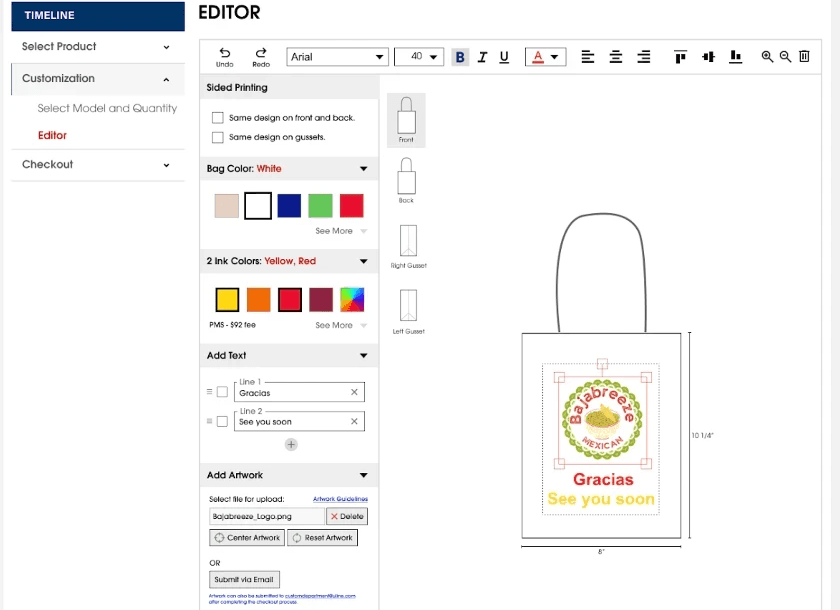
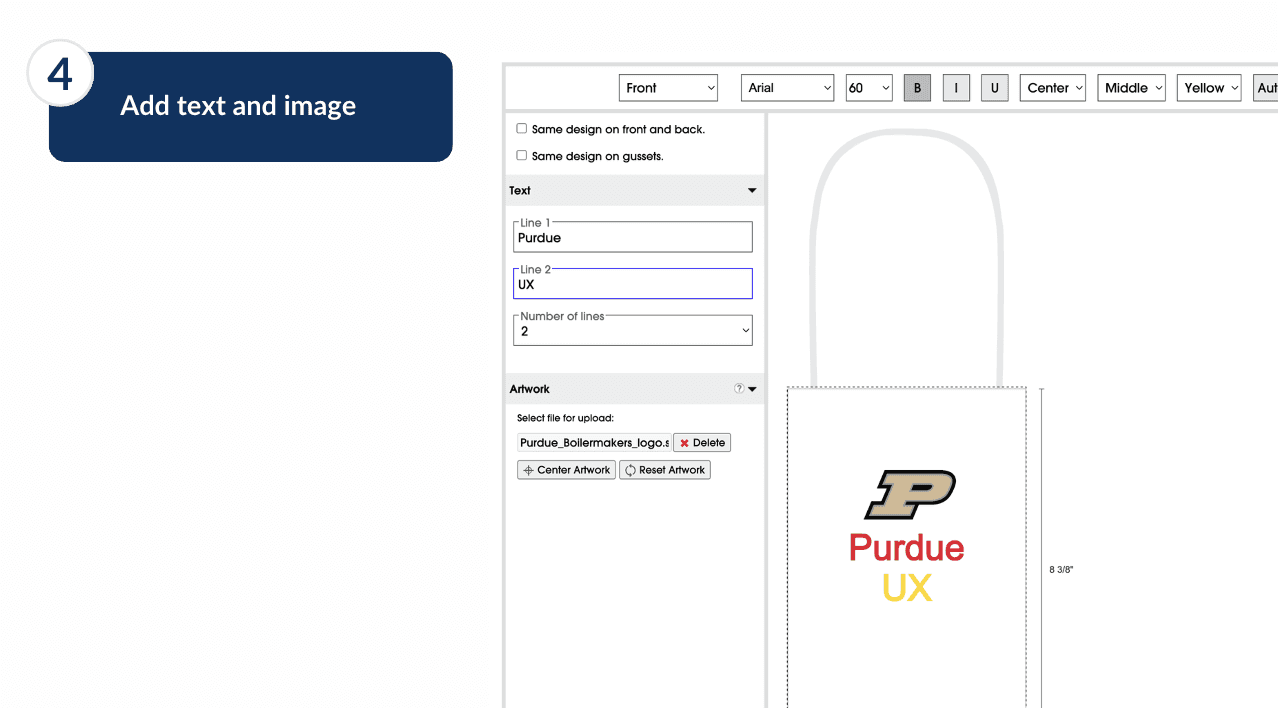
Step 11Once the image has been uploaded, users can freely scale and move the image within the designated space until they are satisfied.
Step 1Once you choose a Bag Color, a preview of the bag you selected will show up in the preview. The color of the preview bag will reflect the color you’ve selected. Then the Ink Colors tab will populate for you to make a selection.
Step 2After you have selected the Ink Colors, the two tabs to Add Text and Add Artwork will populate, along with an updated Pricing & Quantity chart that reflects any pricing changes based on the Ink color selection you’ve made (Custom colors have an extra fee).
Step 3In the text input fields under the Add Text tab, you can put text in lines. Clicking on the plus icon below the fields allows users to add more lines of text, whereas clicking on the “x” icon at the far right of each text field will allow users to delete that line of text.
Step 4Checking the checkboxes next to each text field allows users to Bulk Edit. This means that any changes made on the toolbar will be reflected on the lines of text the user has checked off.
Step 5Checking the checkboxes next to each text field allows users to Bulk Edit. This means that any changes made on the toolbar will be reflected on the lines of text the user has checked off.
Step 6Users can change the font size the same way by clicking on the dropdown and selecting the size they want. All changes will be reflected immediately in the preview.
Step 7To change the formatting of the Text, users can click on any of the Bold, Italic, and Underline icons. The selected icon will be shaded in grey to visually give feedback on its selection status. The formatting change will be reflected in the preview immediately.
Step 8To change the vertical alignment of the text, users can click on the corresponding icons. We see in this example screen that the text is now aligned to the bottom of the designated space.
Step 9To change the vertical alignment of the text, users can click on the corresponding icons. We see in this example screen that the text is now aligned to the bottom of the designated space.
Step 10Users can Add Artwork or image files to the design by clicking on the “Browse” button. A popup will show up where users can look through their desktop files to upload their images of choice.
Step 11Once the image has been uploaded, users can freely scale and move the image within the designated space until they are satisfied.
Step 1Once you choose a Bag Color, a preview of the bag you selected will show up in the preview. The color of the preview bag will reflect the color you’ve selected. Then the Ink Colors tab will populate for you to make a selection.
Step 2After you have selected the Ink Colors, the two tabs to Add Text and Add Artwork will populate, along with an updated Pricing & Quantity chart that reflects any pricing changes based on the Ink color selection you’ve made (Custom colors have an extra fee).
Step 3In the text input fields under the Add Text tab, you can put text in lines. Clicking on the plus icon below the fields allows users to add more lines of text, whereas clicking on the “x” icon at the far right of each text field will allow users to delete that line of text.
Step 4Checking the checkboxes next to each text field allows users to Bulk Edit. This means that any changes made on the toolbar will be reflected on the lines of text the user has checked off.
Step 5Checking the checkboxes next to each text field allows users to Bulk Edit. This means that any changes made on the toolbar will be reflected on the lines of text the user has checked off.
Step 6Users can change the font size the same way by clicking on the dropdown and selecting the size they want. All changes will be reflected immediately in the preview.
Step 7To change the formatting of the Text, users can click on any of the Bold, Italic, and Underline icons. The selected icon will be shaded in grey to visually give feedback on its selection status. The formatting change will be reflected in the preview immediately.
Step 8To change the vertical alignment of the text, users can click on the corresponding icons. We see in this example screen that the text is now aligned to the bottom of the designated space.
Step 9To change the vertical alignment of the text, users can click on the corresponding icons. We see in this example screen that the text is now aligned to the bottom of the designated space.
Step 10Users can Add Artwork or image files to the design by clicking on the “Browse” button. A popup will show up where users can look through their desktop files to upload their images of choice.
Step 11Once the image has been uploaded, users can freely scale and move the image within the designated space until they are satisfied.
Step 1Once you choose a Bag Color, a preview of the bag you selected will show up in the preview. The color of the preview bag will reflect the color you’ve selected. Then the Ink Colors tab will populate for you to make a selection.
Step 2After you have selected the Ink Colors, the two tabs to Add Text and Add Artwork will populate, along with an updated Pricing & Quantity chart that reflects any pricing changes based on the Ink color selection you’ve made (Custom colors have an extra fee).
Step 3In the text input fields under the Add Text tab, you can put text in lines. Clicking on the plus icon below the fields allows users to add more lines of text, whereas clicking on the “x” icon at the far right of each text field will allow users to delete that line of text.
Step 4Checking the checkboxes next to each text field allows users to Bulk Edit. This means that any changes made on the toolbar will be reflected on the lines of text the user has checked off.
Step 5Checking the checkboxes next to each text field allows users to Bulk Edit. This means that any changes made on the toolbar will be reflected on the lines of text the user has checked off.
Step 6Users can change the font size the same way by clicking on the dropdown and selecting the size they want. All changes will be reflected immediately in the preview.
Step 7To change the formatting of the Text, users can click on any of the Bold, Italic, and Underline icons. The selected icon will be shaded in grey to visually give feedback on its selection status. The formatting change will be reflected in the preview immediately.
Step 8To change the vertical alignment of the text, users can click on the corresponding icons. We see in this example screen that the text is now aligned to the bottom of the designated space.
Step 9To change the vertical alignment of the text, users can click on the corresponding icons. We see in this example screen that the text is now aligned to the bottom of the designated space.
Step 10Users can Add Artwork or image files to the design by clicking on the “Browse” button. A popup will show up where users can look through their desktop files to upload their images of choice.
Step 11Once the image has been uploaded, users can freely scale and move the image within the designated space until they are satisfied.
Final Design
How can we design scalable solutions for future services such as product previews?
To support ULINE's future growth, we have identified opportunities to enhance scalability and improve the custom product design service. Our key recommendations include standardizing design tools to accommodate a wider range of products beyond custom paper bags and improving the visibility of the Custom Product Design feature on ULINE’s homepage. This could be achieved by adding it to the navigation bar or the hero section. Insights gathered from usability testing and interviews revealed the need for features such as autosave, multiple artwork uploads, and the ability to freely move text within the Design Editor. Additionally, integrating social media sign-in can streamline user registration. While time constraints limited exploration of more ambitious ideas, suggestions like creating visual guides for the custom design process and building upon earlier research can help guide ULINE’s long-term innovation efforts.
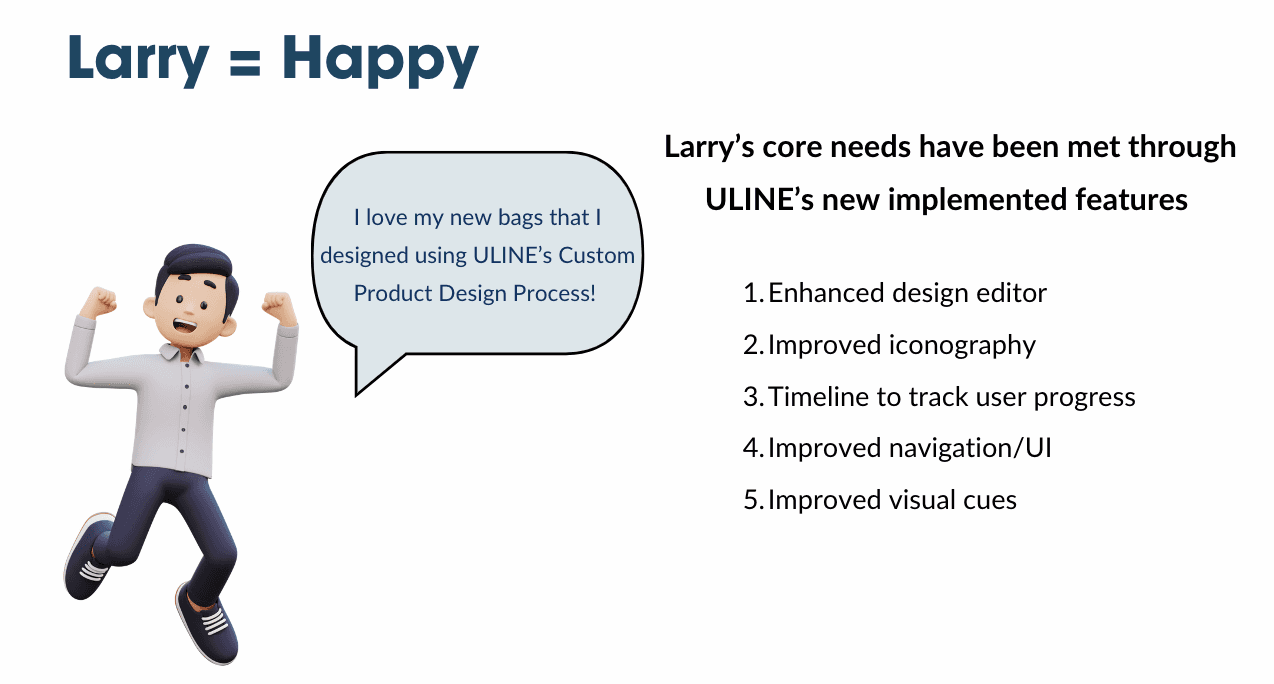
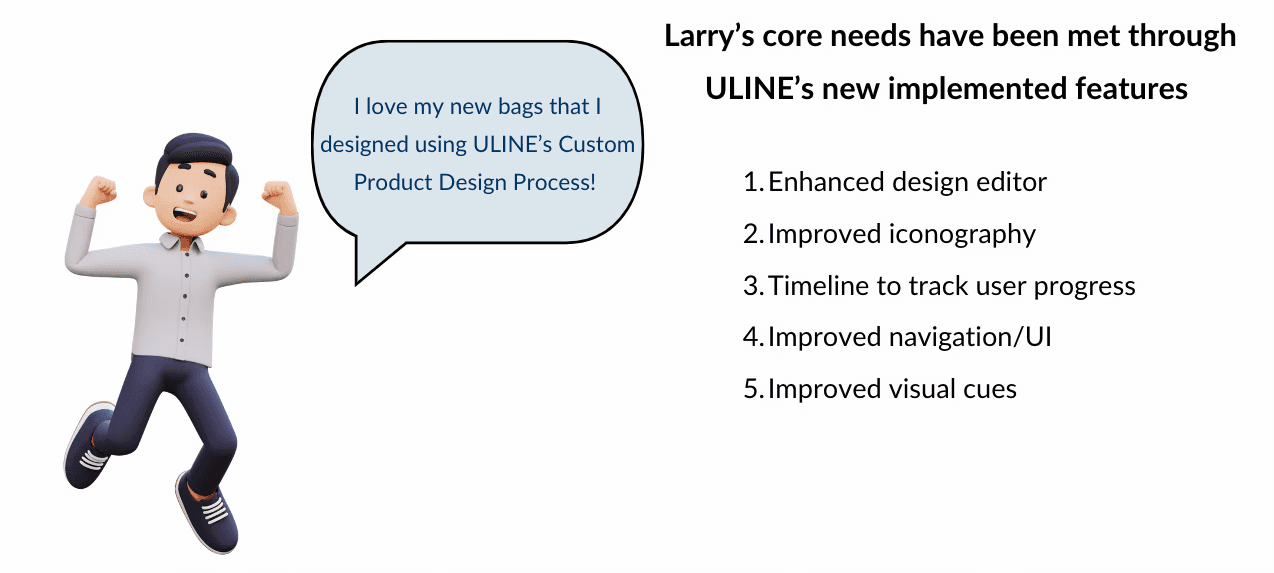
Finally Larry is…..
Reflection
This CPT web toolkit project was a valuable learning experience. Through interviews and workshops, I gained a deeper understanding of the challenges faced by international students navigating the CPT process. It was eye-opening to see how seemingly minor website issues like unclear language or navigation could create significant roadblocks.
The co-design workshops were particularly rewarding. Hearing directly from students and collaborating on solutions fostered a sense of empathy and the importance of user-centered design. It was exciting to see our initial sketches evolve into a user-friendly prototype that addressed user pain points.
this project solidified my passion for UX design. It demonstrated the power of research, collaboration, and iteration in creating a user experience that is both functional and impactful.
This CPT web toolkit project was a valuable learning experience. Through interviews and workshops, I gained a deeper understanding of the challenges faced by international students navigating the CPT process. It was eye-opening to see how seemingly minor website issues like unclear language or navigation could create significant roadblocks.
The co-design workshops were particularly rewarding. Hearing directly from students and collaborating on solutions fostered a sense of empathy and the importance of user-centered design. It was exciting to see our initial sketches evolve into a user-friendly prototype that addressed user pain points.
this project solidified my passion for UX design. It demonstrated the power of research, collaboration, and iteration in creating a user experience that is both functional and impactful.
What I learned
From this project, I learned the crucial art of balancing user needs with technical realities. Sure, I could design the dream CPT web toolkit, but if it didn't adhere to Purdue's branding or couldn't be implemented by the webmaster team, it wouldn't serve students. This project honed my ability to be creative within constraints, resulting in a solution that was both user-centered and feasible. It highlighted that effective UX design considers not just what users want, but also the real-world limitations that shape the final product.
To see the project in more detail, please find the documentation link attached below:
To see the sketches, mid-fis and Hi-fs in more detail, please follow the Figma link attached below:
Next Projects

Project Context
Fall 2024
Team: Tanvi Chand,
Amy Fei, Natalie Falzone,
Hope Jang, Emma Osante,
Tejasvi Bhagwatkar,
Ellie Starzak
Roles and Responsibility
Co-led team and established project framework
Led research and contributed to high-fidelity design
Acted as main point of contact with sponsor
Ensured clear communication and stakeholder alignment
Context
Context
Uline is a leading distributor of shipping, packaging, and industrial supplies across North America.
The current ULINE Custom Product Design Process is time-consuming, complex, and unintuitive for customers, particularly those unfamiliar with the tool; the interface and workflow present usability challenges, leading to frustration and inefficiency. This project seeks to identify and address these pain points, creating a more streamlined and user-friendly experience for customers to easily design and order custom-printed products.
User Group
The target audience for this project consists of both business-to-business (B2B) and business-to-customer (B2C) customers who want to create custom products for their business.
Meet Larry!!
Larry Needs
Unfortunately Larry…….
To help Larry overcome his frustration while working with the Uline website, we implemented a series of improvements
Approach
To help the user understand where they might be going wrong in the process, we sketched ways for the system to immediately alert the user that they are missing something, whether that be an incompatible dropdown selection or an email input error ( from the sketch above). In the same vein, this sketch also displays ways to inform the user that what they are doing is correct to allow them to move quickly through the steps.
Current state
Final Design
Identify design opportunities in ULINE's Custom Product Design process
Our goal is to understand how the custom product design feature— and others similar to it— operates, and where businesses using this feature may encounter issues with its design.
Q
Interview
Competive / Comparative Analysis
Cognitive Walkthrough
Heuristic Evaluation
All of the research helped us in creating our journey map
Define, Create, and Evaluate a Seamless Custom Product Design Process.
Our goal is to apply our insights from Milestone 1 to a user interface prototype that effectively makes the ULINE Custom Product Design process effortless and user-friendly.
Sketching
Sketching
The goal of our preliminary sketching phase was to ideate and determine the most seamless and effective design solutions. Based on insights gathered from both new and experienced users, we identified two key opportunities: improving user feedback mechanisms and enhancing the visualization of design options. To explore solutions for these opportunities, our team conducted a "Crazy Eight's" brainstorming session. This activity involved generating and voting on a variety of proposed design solutions, ultimately guiding us towards the most promising directions for our redesign.
The goal of our preliminary sketching phase was to ideate and determine the most seamless and effective design solutions. Based on insights gathered from both new and experienced users, we identified two key opportunities: improving user feedback mechanisms and enhancing the visualization of design options. To explore solutions for these opportunities, our team conducted a "Crazy Eight's" brainstorming session. This activity involved generating and voting on a variety of proposed design solutions, ultimately guiding us towards the most promising directions for our redesign.
To help the user understand where they might be going wrong in the process, we sketched ways for the system to immediately alert the user that they are missing something, whether that be an incompatible dropdown selection or an email input error ( from the sketch above). In the same vein, this sketch also displays ways to inform the user that what they are doing is correct to allow them to move quickly through the steps.
To see more sketches, please refer to the documentation below
Wireframes
Wireframe
To translate research insights (usability testing, interviews, heuristic evaluation) into tangible, testable designs, we utilized Whimiscal to create mid-fidelity wireframes. Whimiscal's pre-built UI elements facilitated rapid prototyping and allowed us to effectively visualize and test key design improvements identified during research.
NavigationTo enhance navigation, we implemented a timeline feature within the ULINE site. This includes a vertical timeline showcasing broader process steps and horizontal sub-steps within each. Additionally, back/next buttons provide clear direction, preventing users from getting stuck on a page due to uncertainty.
Enhance Editor and IconographyTo enhance the ULINE editor, we optimized sidebar usage and redesigned the top toolbar. We moved bag and ink color selections to the sidebar for improved accessibility. The redesigned toolbar now aligns with familiar platform conventions.
Improved Visual CuesUsability testing revealed confusion regarding ink color selection. To improve this, we implemented enhanced visual cues. Selected color boxes now feature a dashed border and a checkmark, providing users with clearer feedback and a more intuitive selection process.
NavigationTo enhance navigation, we implemented a timeline feature within the ULINE site. This includes a vertical timeline showcasing broader process steps and horizontal sub-steps within each. Additionally, back/next buttons provide clear direction, preventing users from getting stuck on a page due to uncertainty.
Enhance Editor and IconographyTo enhance the ULINE editor, we optimized sidebar usage and redesigned the top toolbar. We moved bag and ink color selections to the sidebar for improved accessibility. The redesigned toolbar now aligns with familiar platform conventions.
Improved Visual CuesUsability testing revealed confusion regarding ink color selection. To improve this, we implemented enhanced visual cues. Selected color boxes now feature a dashed border and a checkmark, providing users with clearer feedback and a more intuitive selection process.
NavigationTo enhance navigation, we implemented a timeline feature within the ULINE site. This includes a vertical timeline showcasing broader process steps and horizontal sub-steps within each. Additionally, back/next buttons provide clear direction, preventing users from getting stuck on a page due to uncertainty.
Enhance Editor and IconographyTo enhance the ULINE editor, we optimized sidebar usage and redesigned the top toolbar. We moved bag and ink color selections to the sidebar for improved accessibility. The redesigned toolbar now aligns with familiar platform conventions.
Improved Visual CuesUsability testing revealed confusion regarding ink color selection. To improve this, we implemented enhanced visual cues. Selected color boxes now feature a dashed border and a checkmark, providing users with clearer feedback and a more intuitive selection process.
NavigationTo enhance navigation, we implemented a timeline feature within the ULINE site. This includes a vertical timeline showcasing broader process steps and horizontal sub-steps within each. Additionally, back/next buttons provide clear direction, preventing users from getting stuck on a page due to uncertainty.
Enhance Editor and IconographyTo enhance the ULINE editor, we optimized sidebar usage and redesigned the top toolbar. We moved bag and ink color selections to the sidebar for improved accessibility. The redesigned toolbar now aligns with familiar platform conventions.
Improved Visual CuesUsability testing revealed confusion regarding ink color selection. To improve this, we implemented enhanced visual cues. Selected color boxes now feature a dashed border and a checkmark, providing users with clearer feedback and a more intuitive selection process.
NavigationTo enhance navigation, we implemented a timeline feature within the ULINE site. This includes a vertical timeline showcasing broader process steps and horizontal sub-steps within each. Additionally, back/next buttons provide clear direction, preventing users from getting stuck on a page due to uncertainty.
Enhance Editor and IconographyTo enhance the ULINE editor, we optimized sidebar usage and redesigned the top toolbar. We moved bag and ink color selections to the sidebar for improved accessibility. The redesigned toolbar now aligns with familiar platform conventions.
Improved Visual CuesUsability testing revealed confusion regarding ink color selection. To improve this, we implemented enhanced visual cues. Selected color boxes now feature a dashed border and a checkmark, providing users with clearer feedback and a more intuitive selection process.
NavigationTo enhance navigation, we implemented a timeline feature within the ULINE site. This includes a vertical timeline showcasing broader process steps and horizontal sub-steps within each. Additionally, back/next buttons provide clear direction, preventing users from getting stuck on a page due to uncertainty.
Enhance Editor and IconographyTo enhance the ULINE editor, we optimized sidebar usage and redesigned the top toolbar. We moved bag and ink color selections to the sidebar for improved accessibility. The redesigned toolbar now aligns with familiar platform conventions.
Improved Visual CuesUsability testing revealed confusion regarding ink color selection. To improve this, we implemented enhanced visual cues. Selected color boxes now feature a dashed border and a checkmark, providing users with clearer feedback and a more intuitive selection process.
NavigationTo enhance navigation, we implemented a timeline feature within the ULINE site. This includes a vertical timeline showcasing broader process steps and horizontal sub-steps within each. Additionally, back/next buttons provide clear direction, preventing users from getting stuck on a page due to uncertainty.
Enhance Editor and IconographyTo enhance the ULINE editor, we optimized sidebar usage and redesigned the top toolbar. We moved bag and ink color selections to the sidebar for improved accessibility. The redesigned toolbar now aligns with familiar platform conventions.
Improved Visual CuesUsability testing revealed confusion regarding ink color selection. To improve this, we implemented enhanced visual cues. Selected color boxes now feature a dashed border and a checkmark, providing users with clearer feedback and a more intuitive selection process.
NavigationTo enhance navigation, we implemented a timeline feature within the ULINE site. This includes a vertical timeline showcasing broader process steps and horizontal sub-steps within each. Additionally, back/next buttons provide clear direction, preventing users from getting stuck on a page due to uncertainty.
Enhance Editor and IconographyTo enhance the ULINE editor, we optimized sidebar usage and redesigned the top toolbar. We moved bag and ink color selections to the sidebar for improved accessibility. The redesigned toolbar now aligns with familiar platform conventions.
Improved Visual CuesUsability testing revealed confusion regarding ink color selection. To improve this, we implemented enhanced visual cues. Selected color boxes now feature a dashed border and a checkmark, providing users with clearer feedback and a more intuitive selection process.
Before proceeding to high-fidelity prototypes, we sought feedback on key design decisions. This included determining the typical number of ink colors and lines used by users, and evaluating the effectiveness of two separate timelines (one for the overall process and one for sub-steps). Our sponsor challenged us to integrate these timelines more efficiently, a suggestion also supported by usability testing and critiques. This iterative process, involving user feedback and expert opinions, informed the development of our high-fidelity prototypes
Before proceeding to high-fidelity prototypes, we sought feedback on key design decisions. This included determining the typical number of ink colors and lines used by users, and evaluating the effectiveness of two separate timelines (one for the overall process and one for sub-steps). Our sponsor challenged us to integrate these timelines more efficiently, a suggestion also supported by usability testing and critiques. This iterative process, involving user feedback and expert opinions, informed the development of our high-fidelity prototypes
Testing
Testing
Mid-Fidelity Critique Workshop
Mid-Fidelity Accessibility Workshop
Mid-Fidelity Usability Testing
Final Design
Landing Page
Landing Page
The mid-fidelity designs for the landing page featured caption links and a box highlighting popular products. In the final design, the hyperlinks were adjusted for better visual consistency. "Back" and "Next" buttons were added to enhance navigation, addressing concerns about clarity on the number of steps and progression, as noted during Cognitive Walkthroughs. The highlight box was removed, but the top products were kept at the top of the page.
The mid-fidelity designs for the landing page featured caption links and a box highlighting popular products. In the final design, the hyperlinks were adjusted for better visual consistency. "Back" and "Next" buttons were added to enhance navigation, addressing concerns about clarity on the number of steps and progression, as noted during Cognitive Walkthroughs. The highlight box was removed, but the top products were kept at the top of the page.
Select Bag Type Page
Select Bag Type Page
Key insights revealed that the prototypes felt overwhelming due to excessive information and lacked sufficient visual cues to indicate selected states and guide navigation.
To address these issues, we made several improvements:
Enhanced Product Selection: Added buttons for bag type selection with immediate visual feedback. A greyed-out “Next” button prevents progression until a selection is made, clarifying required actions.
Reduced Cognitive Overload: Divided the bag customization process into two steps, incorporating visual cues like grey backgrounds and changed button states to guide users.
Testing confirmed these changes improved clarity. The clickable "Next" button indicated pending actions, resolving confusion when screens did not advance after a selection. These updates ensure users have clear information and freedom to make choices.
Key insights revealed that the prototypes felt overwhelming due to excessive information and lacked sufficient visual cues to indicate selected states and guide navigation.
To address these issues, we made several improvements:
Enhanced Product Selection: Added buttons for bag type selection with immediate visual feedback. A greyed-out “Next” button prevents progression until a selection is made, clarifying required actions.
Reduced Cognitive Overload: Divided the bag customization process into two steps, incorporating visual cues like grey backgrounds and changed button states to guide users.
Testing confirmed these changes improved clarity. The clickable "Next" button indicated pending actions, resolving confusion when screens did not advance after a selection. These updates ensure users have clear information and freedom to make choices.
Price and Quantity page
Price and Quantity page
In our mid-fidelity designs, the price and quantity pages were initially separate but were combined into one page to reduce the number of screens. This decision was influenced by sponsor feedback emphasizing the need for quick website navigation and desk critique insights to simplify the process and reduce user overwhelm.
For the high-fidelity designs, we incorporated a Product Preview feature. Participants expressed difficulty visualizing bag dimensions from a table, so we added a Bag Size Preview that appears when users hover over a Model Number. These changes improve efficiency and enhance the user experience with clearer visual guidance.
In our mid-fidelity designs, the price and quantity pages were initially separate but were combined into one page to reduce the number of screens. This decision was influenced by sponsor feedback emphasizing the need for quick website navigation and desk critique insights to simplify the process and reduce user overwhelm.
For the high-fidelity designs, we incorporated a Product Preview feature. Participants expressed difficulty visualizing bag dimensions from a table, so we added a Bag Size Preview that appears when users hover over a Model Number. These changes improve efficiency and enhance the user experience with clearer visual guidance.
Design Editor page
Design Editor page
In our mid-fidelity designs for the Design Editor, we introduced two new tabs for selecting Bag and Ink Colors, allowing users to see immediate feedback through a Product Preview that updates based on their selections.
We also revamped the toolbar to address issues with the original ULINE design, which used dropdowns and ambiguous terms like "Front," "Center," and "Middle." These were replaced with familiar icons to improve intuitiveness and standardization. Additionally, we added undo and redo buttons to simplify error correction.
For the high-fidelity designs, we retained the mid-fi improvements and further refined the flow to enhance simplicity and cohesion. These updates were informed by insights from the Accessibility Workshop, Critique Workshop, and Usability Testing. The result is a more user-friendly Design Editor with clear and intuitive interactions.
In our mid-fidelity designs for the Design Editor, we introduced two new tabs for selecting Bag and Ink Colors, allowing users to see immediate feedback through a Product Preview that updates based on their selections.
We also revamped the toolbar to address issues with the original ULINE design, which used dropdowns and ambiguous terms like "Front," "Center," and "Middle." These were replaced with familiar icons to improve intuitiveness and standardization. Additionally, we added undo and redo buttons to simplify error correction.
For the high-fidelity designs, we retained the mid-fi improvements and further refined the flow to enhance simplicity and cohesion. These updates were informed by insights from the Accessibility Workshop, Critique Workshop, and Usability Testing. The result is a more user-friendly Design Editor with clear and intuitive interactions.
Step By Step Change
Step 1Once you choose a Bag Color, a preview of the bag you selected will show up in the preview. The color of the preview bag will reflect the color you’ve selected. Then the Ink Colors tab will populate for you to make a selection.
Step 2After you have selected the Ink Colors, the two tabs to Add Text and Add Artwork will populate, along with an updated Pricing & Quantity chart that reflects any pricing changes based on the Ink color selection you’ve made (Custom colors have an extra fee).
Step 3In the text input fields under the Add Text tab, you can put text in lines. Clicking on the plus icon below the fields allows users to add more lines of text, whereas clicking on the “x” icon at the far right of each text field will allow users to delete that line of text.
Step 4Checking the checkboxes next to each text field allows users to Bulk Edit. This means that any changes made on the toolbar will be reflected on the lines of text the user has checked off.
Step 5Checking the checkboxes next to each text field allows users to Bulk Edit. This means that any changes made on the toolbar will be reflected on the lines of text the user has checked off.
Step 6Users can change the font size the same way by clicking on the dropdown and selecting the size they want. All changes will be reflected immediately in the preview.
Step 7To change the formatting of the Text, users can click on any of the Bold, Italic, and Underline icons. The selected icon will be shaded in grey to visually give feedback on its selection status. The formatting change will be reflected in the preview immediately.
Step 8To change the vertical alignment of the text, users can click on the corresponding icons. We see in this example screen that the text is now aligned to the bottom of the designated space.
Step 9To change the vertical alignment of the text, users can click on the corresponding icons. We see in this example screen that the text is now aligned to the bottom of the designated space.
Step 10Users can Add Artwork or image files to the design by clicking on the “Browse” button. A popup will show up where users can look through their desktop files to upload their images of choice.
Step 11Once the image has been uploaded, users can freely scale and move the image within the designated space until they are satisfied.
Step 1Once you choose a Bag Color, a preview of the bag you selected will show up in the preview. The color of the preview bag will reflect the color you’ve selected. Then the Ink Colors tab will populate for you to make a selection.
Step 2After you have selected the Ink Colors, the two tabs to Add Text and Add Artwork will populate, along with an updated Pricing & Quantity chart that reflects any pricing changes based on the Ink color selection you’ve made (Custom colors have an extra fee).
Step 3In the text input fields under the Add Text tab, you can put text in lines. Clicking on the plus icon below the fields allows users to add more lines of text, whereas clicking on the “x” icon at the far right of each text field will allow users to delete that line of text.
Step 4Checking the checkboxes next to each text field allows users to Bulk Edit. This means that any changes made on the toolbar will be reflected on the lines of text the user has checked off.
Step 5Checking the checkboxes next to each text field allows users to Bulk Edit. This means that any changes made on the toolbar will be reflected on the lines of text the user has checked off.
Step 6Users can change the font size the same way by clicking on the dropdown and selecting the size they want. All changes will be reflected immediately in the preview.
Step 7To change the formatting of the Text, users can click on any of the Bold, Italic, and Underline icons. The selected icon will be shaded in grey to visually give feedback on its selection status. The formatting change will be reflected in the preview immediately.
Step 8To change the vertical alignment of the text, users can click on the corresponding icons. We see in this example screen that the text is now aligned to the bottom of the designated space.
Step 9To change the vertical alignment of the text, users can click on the corresponding icons. We see in this example screen that the text is now aligned to the bottom of the designated space.
Step 10Users can Add Artwork or image files to the design by clicking on the “Browse” button. A popup will show up where users can look through their desktop files to upload their images of choice.
Step 11Once the image has been uploaded, users can freely scale and move the image within the designated space until they are satisfied.
Step 1Once you choose a Bag Color, a preview of the bag you selected will show up in the preview. The color of the preview bag will reflect the color you’ve selected. Then the Ink Colors tab will populate for you to make a selection.
Step 2After you have selected the Ink Colors, the two tabs to Add Text and Add Artwork will populate, along with an updated Pricing & Quantity chart that reflects any pricing changes based on the Ink color selection you’ve made (Custom colors have an extra fee).
Step 3In the text input fields under the Add Text tab, you can put text in lines. Clicking on the plus icon below the fields allows users to add more lines of text, whereas clicking on the “x” icon at the far right of each text field will allow users to delete that line of text.
Step 4Checking the checkboxes next to each text field allows users to Bulk Edit. This means that any changes made on the toolbar will be reflected on the lines of text the user has checked off.
Step 5Checking the checkboxes next to each text field allows users to Bulk Edit. This means that any changes made on the toolbar will be reflected on the lines of text the user has checked off.
Step 6Users can change the font size the same way by clicking on the dropdown and selecting the size they want. All changes will be reflected immediately in the preview.
Step 7To change the formatting of the Text, users can click on any of the Bold, Italic, and Underline icons. The selected icon will be shaded in grey to visually give feedback on its selection status. The formatting change will be reflected in the preview immediately.
Step 8To change the vertical alignment of the text, users can click on the corresponding icons. We see in this example screen that the text is now aligned to the bottom of the designated space.
Step 9To change the vertical alignment of the text, users can click on the corresponding icons. We see in this example screen that the text is now aligned to the bottom of the designated space.
Step 10Users can Add Artwork or image files to the design by clicking on the “Browse” button. A popup will show up where users can look through their desktop files to upload their images of choice.
Step 11Once the image has been uploaded, users can freely scale and move the image within the designated space until they are satisfied.
Step 1Once you choose a Bag Color, a preview of the bag you selected will show up in the preview. The color of the preview bag will reflect the color you’ve selected. Then the Ink Colors tab will populate for you to make a selection.
Step 2After you have selected the Ink Colors, the two tabs to Add Text and Add Artwork will populate, along with an updated Pricing & Quantity chart that reflects any pricing changes based on the Ink color selection you’ve made (Custom colors have an extra fee).
Step 3In the text input fields under the Add Text tab, you can put text in lines. Clicking on the plus icon below the fields allows users to add more lines of text, whereas clicking on the “x” icon at the far right of each text field will allow users to delete that line of text.
Step 4Checking the checkboxes next to each text field allows users to Bulk Edit. This means that any changes made on the toolbar will be reflected on the lines of text the user has checked off.
Step 5Checking the checkboxes next to each text field allows users to Bulk Edit. This means that any changes made on the toolbar will be reflected on the lines of text the user has checked off.
Step 6Users can change the font size the same way by clicking on the dropdown and selecting the size they want. All changes will be reflected immediately in the preview.
Step 7To change the formatting of the Text, users can click on any of the Bold, Italic, and Underline icons. The selected icon will be shaded in grey to visually give feedback on its selection status. The formatting change will be reflected in the preview immediately.
Step 8To change the vertical alignment of the text, users can click on the corresponding icons. We see in this example screen that the text is now aligned to the bottom of the designated space.
Step 9To change the vertical alignment of the text, users can click on the corresponding icons. We see in this example screen that the text is now aligned to the bottom of the designated space.
Step 10Users can Add Artwork or image files to the design by clicking on the “Browse” button. A popup will show up where users can look through their desktop files to upload their images of choice.
Step 11Once the image has been uploaded, users can freely scale and move the image within the designated space until they are satisfied.
How can we design scalable solutions for future services such as product previews?
To support ULINE's future growth, we have identified opportunities to enhance scalability and improve the custom product design service. Our key recommendations include standardizing design tools to accommodate a wider range of products beyond custom paper bags and improving the visibility of the Custom Product Design feature on ULINE’s homepage. This could be achieved by adding it to the navigation bar or the hero section. Insights gathered from usability testing and interviews revealed the need for features such as autosave, multiple artwork uploads, and the ability to freely move text within the Design Editor. Additionally, integrating social media sign-in can streamline user registration. While time constraints limited exploration of more ambitious ideas, suggestions like creating visual guides for the custom design process and building upon earlier research can help guide ULINE’s long-term innovation efforts.
Finally Larry is…..
Reflection
This semester was a whirlwind of growth for me as a UX practitioner. Stepping into the role of co-project manager was a thrilling challenge. I navigated the complexities of team dynamics, fostering a collaborative and inclusive environment where everyone felt heard and valued. We implemented a robust project management framework, complete with a dynamic roadmap and daily stand-up meetings, ensuring we stayed on track and delivered exceptional results.
Beyond project management, I enthusiastically delved deeper into the UX field. I expanded my knowledge of research methodologies, actively participated in wireframing and prototyping, and championed the creation of both mid-fidelity and high-fidelity prototypes, even exploring interactive elements to bring our designs to life.
Communication and stakeholder management took center stage in my interactions with our industry sponsor. I became a bridge between our team and the sponsor, ensuring clear and consistent communication. By proactively addressing their questions and concerns, I built strong relationships and fostered a successful partnership
What I learned
This project taught me a valuable lesson- sometimes the most effective designs are the simplest. While initially, as a team, we felt the design was 'rudimentary,' we learned that for a business like ULINE, prioritizing clarity and efficiency can be more impactful than overly complex aesthetics. By focusing on user needs and streamlining the process through intuitive navigation, clear feedback mechanisms, and accessible features, we created a more user-friendly experience that ultimately benefited both the user and the business
To see the project in more detail, please find the documentation link attached below:
To see the sketches, mid-fis and Hi-fs in more detail, please follow the Figma link attached below: